Topic Research helps you find what's worth writing about. Enter any keyword and YOSA pulls live SERP data and AI search results to generate a list of topics - each with intent analysis, funnel stage, keyword context, and strategic reasoning. From the results you can go straight to content generation in one click.
Starting a New Research
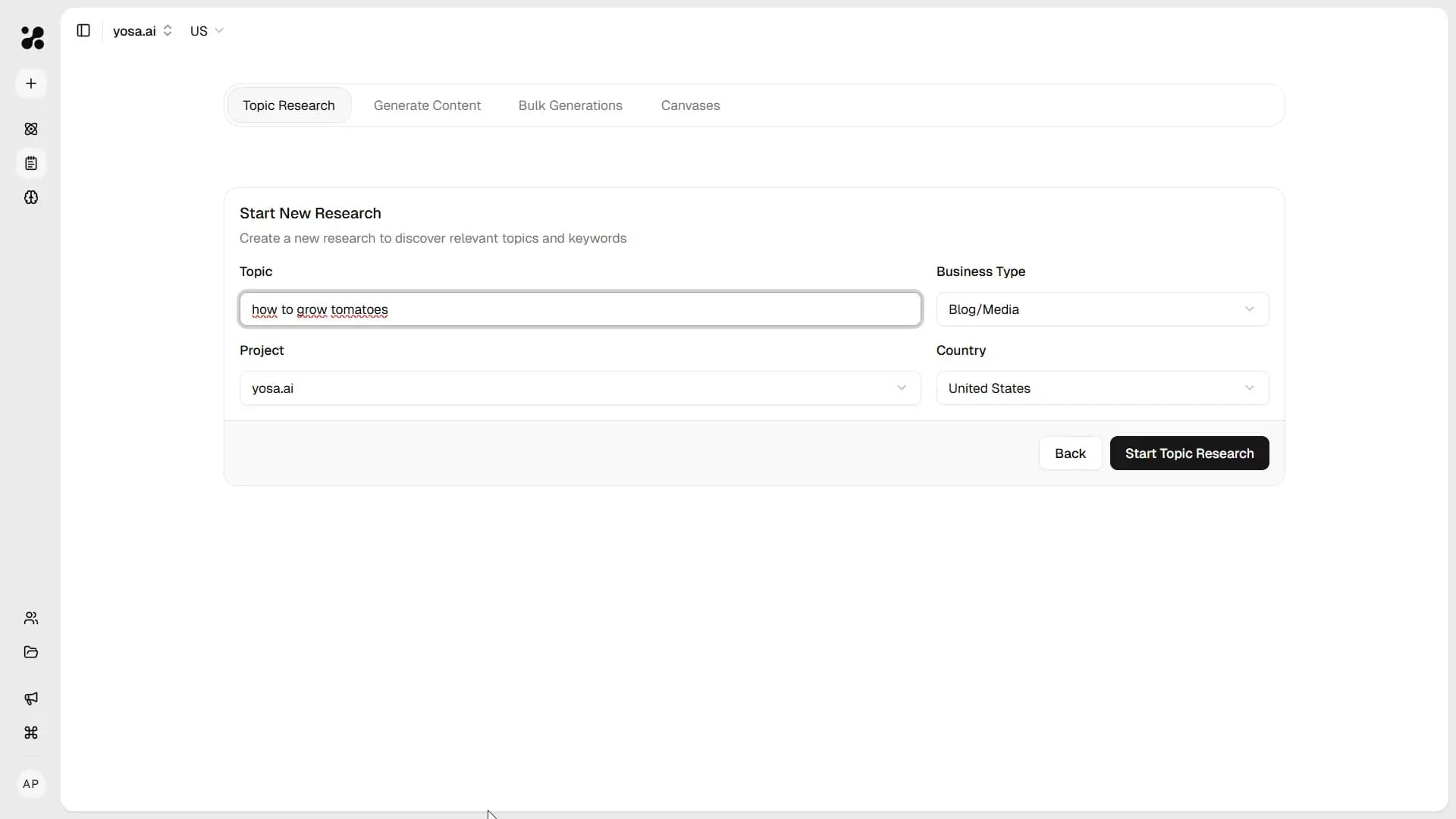
- Navigate to Topic Research in the sidebar, or go to Content → Topic Research.
- Click + Start New Research in the top-right corner.
- Fill all the fields:
Field | Description |
Topic | The keyword or subject you want to explore. Can be broad ("running shoes") or specific ("trail running shoes for wide feet"). |
Business Type | The type of site this research is for. Affects topic framing and funnel distribution. |
Project | Which project to associate the research with. Defaults to the active project. |
Country | The target market for SERP data. |
- Click Start Topic Research to begin. YOSA will confirm with a "Research started successfully" toast and open the processing view.
Processing
While the research runs, YOSA shows a processing window with a live timer. This usually takes under a minute.
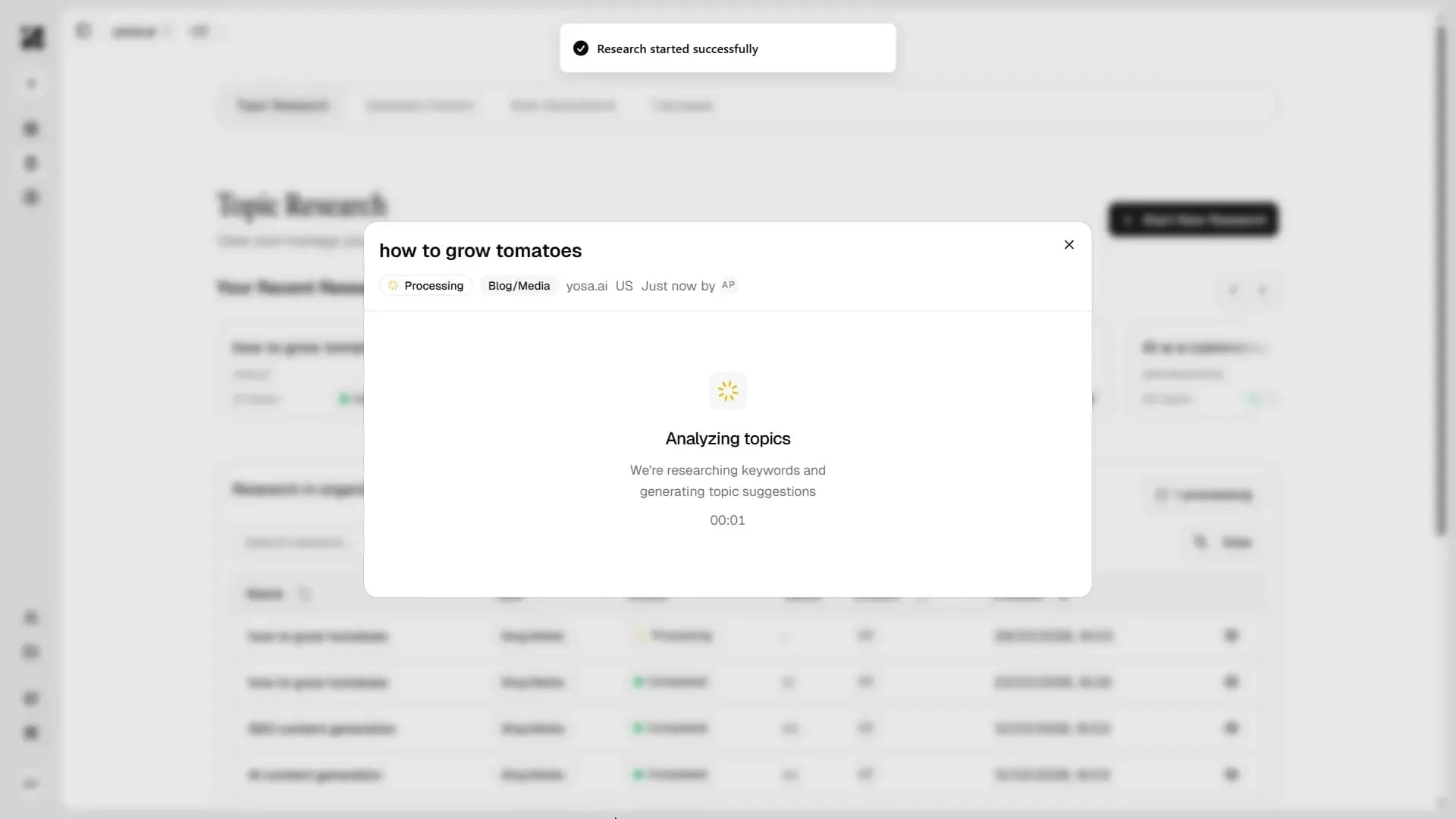
At this point the research appears in the list with a Processing status. You can close this window and continue working on another topic researches, content pieces or with chat.
Once complete, the status changes to Completed, YOSA sends you a notification, and the result is ready to open.
The Research List
All completed and in-progress researches for your organization are shown in the Topic Research main table, filterable by:
- Type - Business type used for the research
- Project - Which project it belongs to
- User - Who created it
- Date Range - When it was created
Each row shows the research name, content type, status, number of topics generated, creator, and creation date. Click the eye icon on the right to open the results.
Reading the Results
Opening a completed research shows the full topic list.
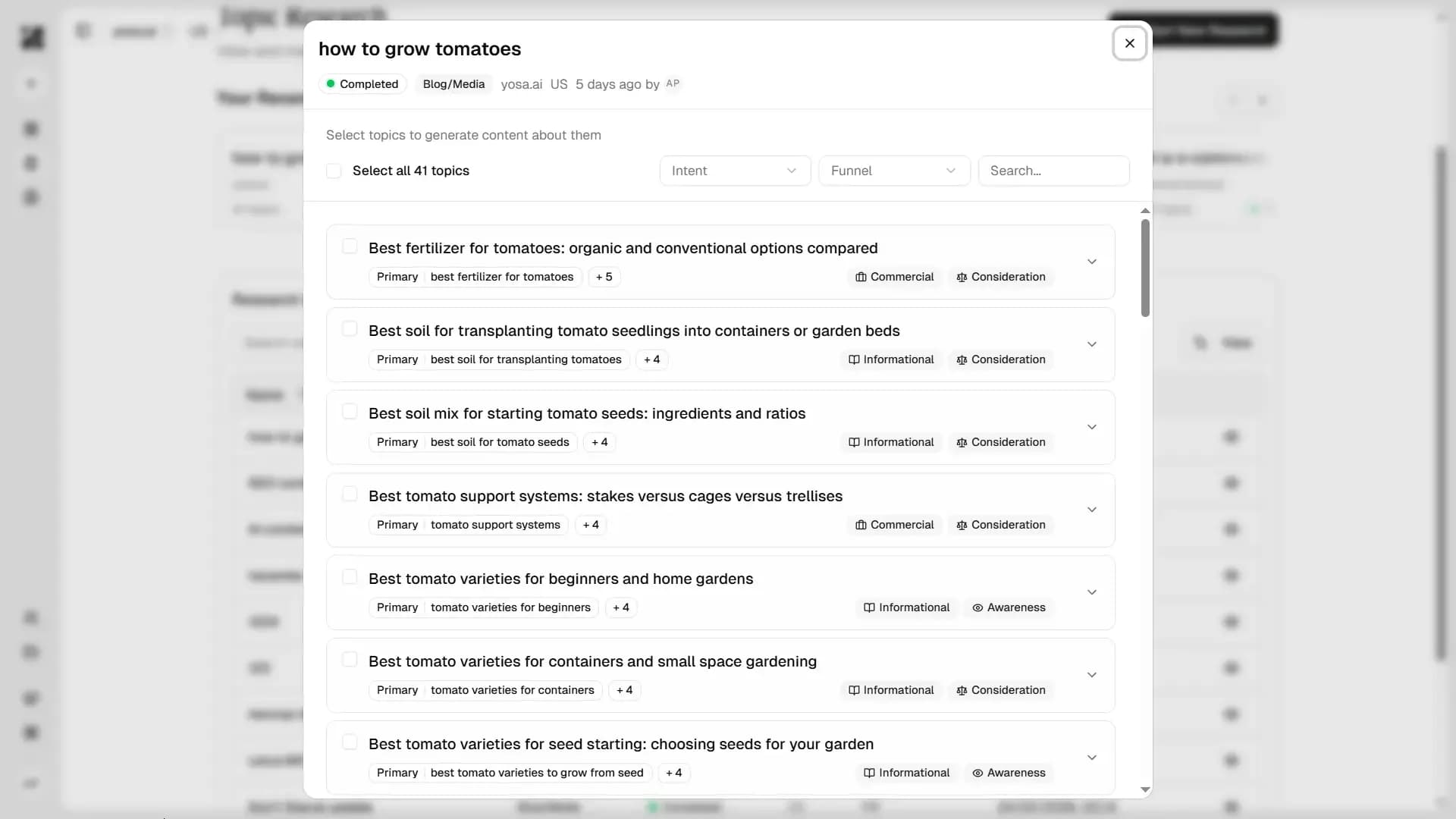
Each topic shows at a glance:
Element | What it means |
Title | The suggested article title |
Primary + keyword | The main target keyword for this topic |
+ 4 | Number of additional related keywords |
Intent | Content intent type: Informational, Commercial, or Navigational |
Funnel stage | Where this topic sits in the buyer journey: Awareness, Consideration, Decision, or Retention |
Expanding a Topic
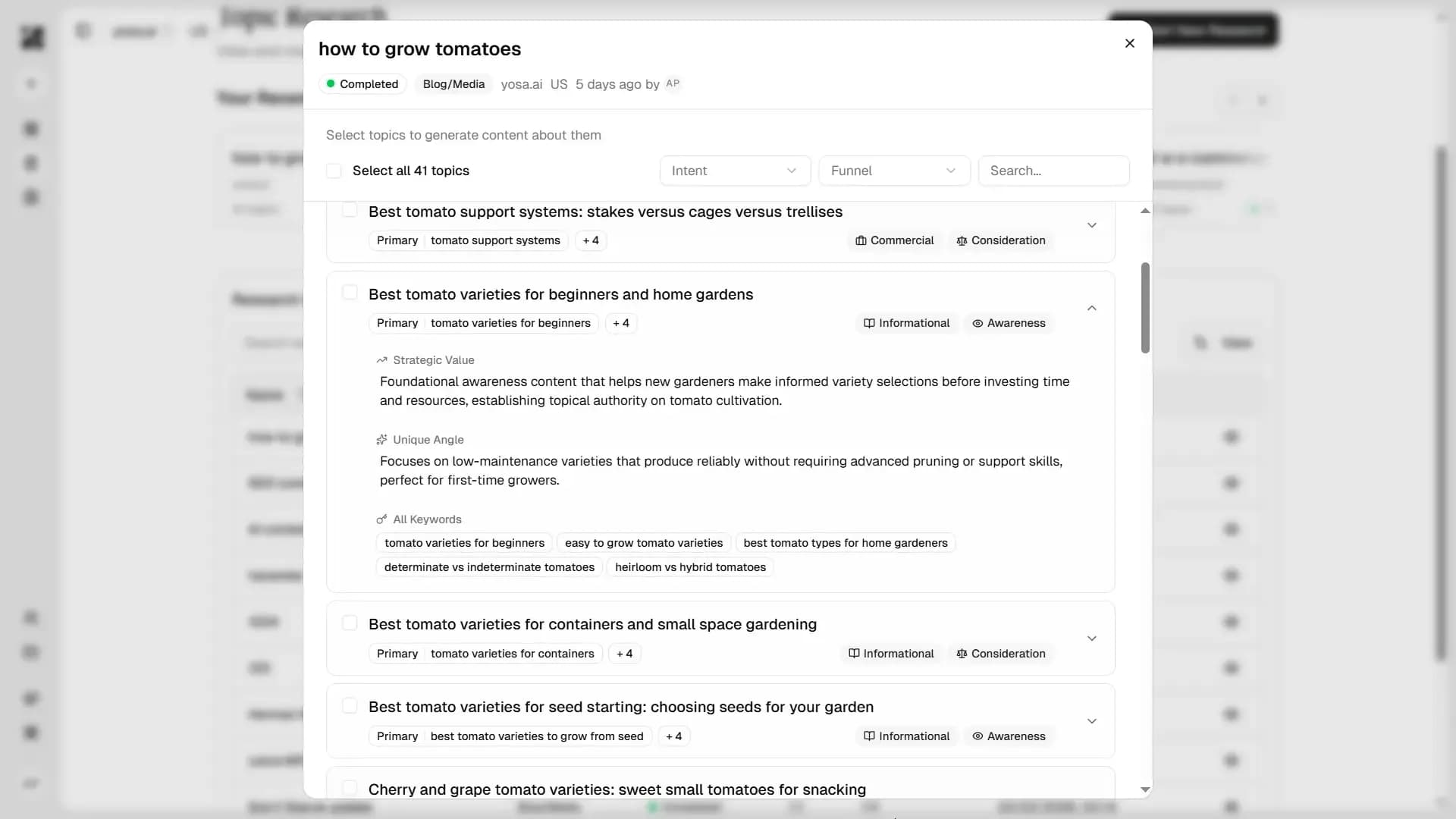
Click the chevron (↓) on any topic to reveal the full details:
- Strategic Value - Why this topic is worth covering and what user problem it solves
- Unique Angle - A specific editorial direction that's underrepresented in current results
- All Keywords - The complete keyword set associated with this topic
Filtering Results
Use the Intent and Funnel dropdowns at the top of the results modal to narrow the list.
Funnel filter options:
- All funnels
- Awareness
- Consideration
- Decision
- Retention
You can also use the Search field to find topics by keyword within the list.
Generating Content from Topics
Select any topics by checking the boxes next to them. The button in the bottom-right updates to show how many you've selected.
- Single topic selected → click Generate 1 → opens Single generation with Title and Keywords pre-filled
- Multiple topics selected → click Generate X → opens Bulk generation with one row per selected topic, all pre-filled
You can also use Select all X topics at the top to select the entire list at once.
Next Steps
- Generate content from your topic list
- Generate multiple articles from selected topics at once
- Ask YOSA about keyword data and search intent for any topic