The Billing tab in your Organization settings is where you manage your subscription, invoice details, payment methods, and billing email. Access it via Organization → Billing.
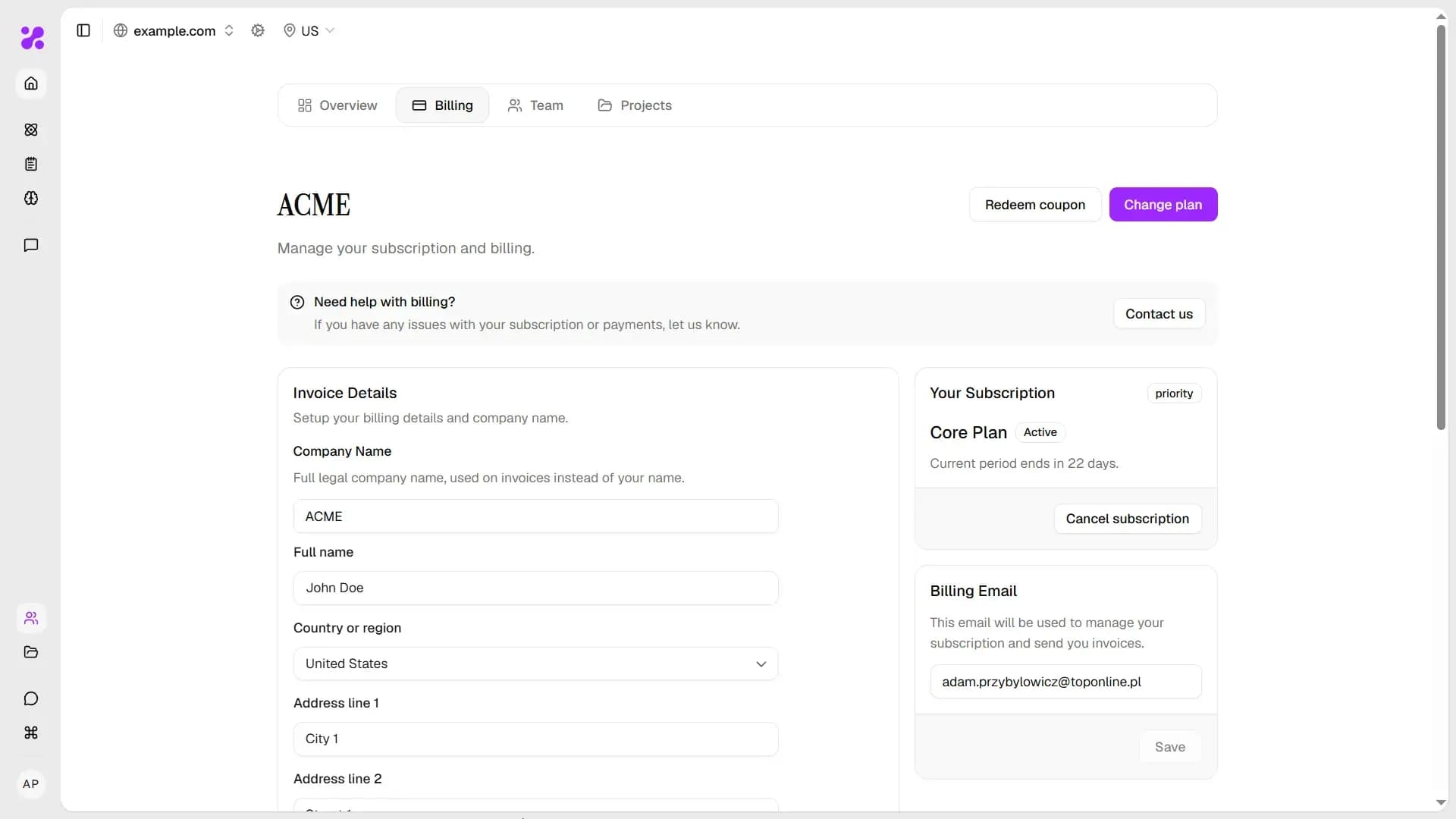
Your Subscription
The Your Subscription card shows your current plan, its status, and when the current billing period ends.
From here you can:
- Change plan - switch to a different plan or adjust your generation volume
- Cancel subscription - cancel at any time; access continues until the end of the current billing period
If your organization has no active subscription, this card shows No active subscription with a Choose new plan button.
Plans
YOSA offers three plans, available on monthly or yearly billing. For detail, see Pricing.
Changing Your Plan
From Free Plan / an active subscription
- Go to Organization → Billing.
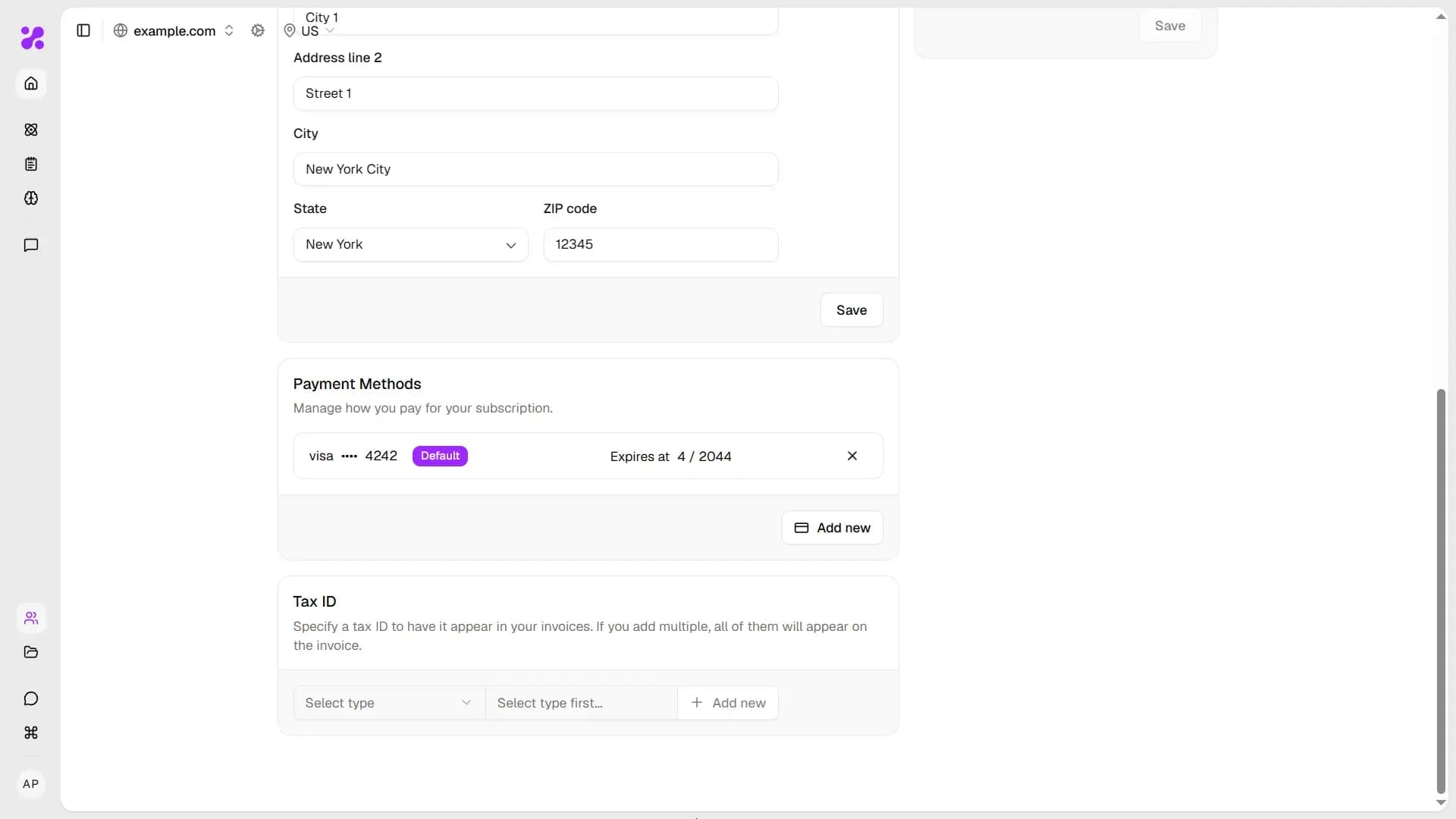
- Fill your Payment Details and save.
- Add Payment Method.
- Specify Tax ID and save (if needed).
- Click Change plan in the Your Subscription card.
- Select your new plan and billing period in the modal.
- Click Continue and complete the checkout.
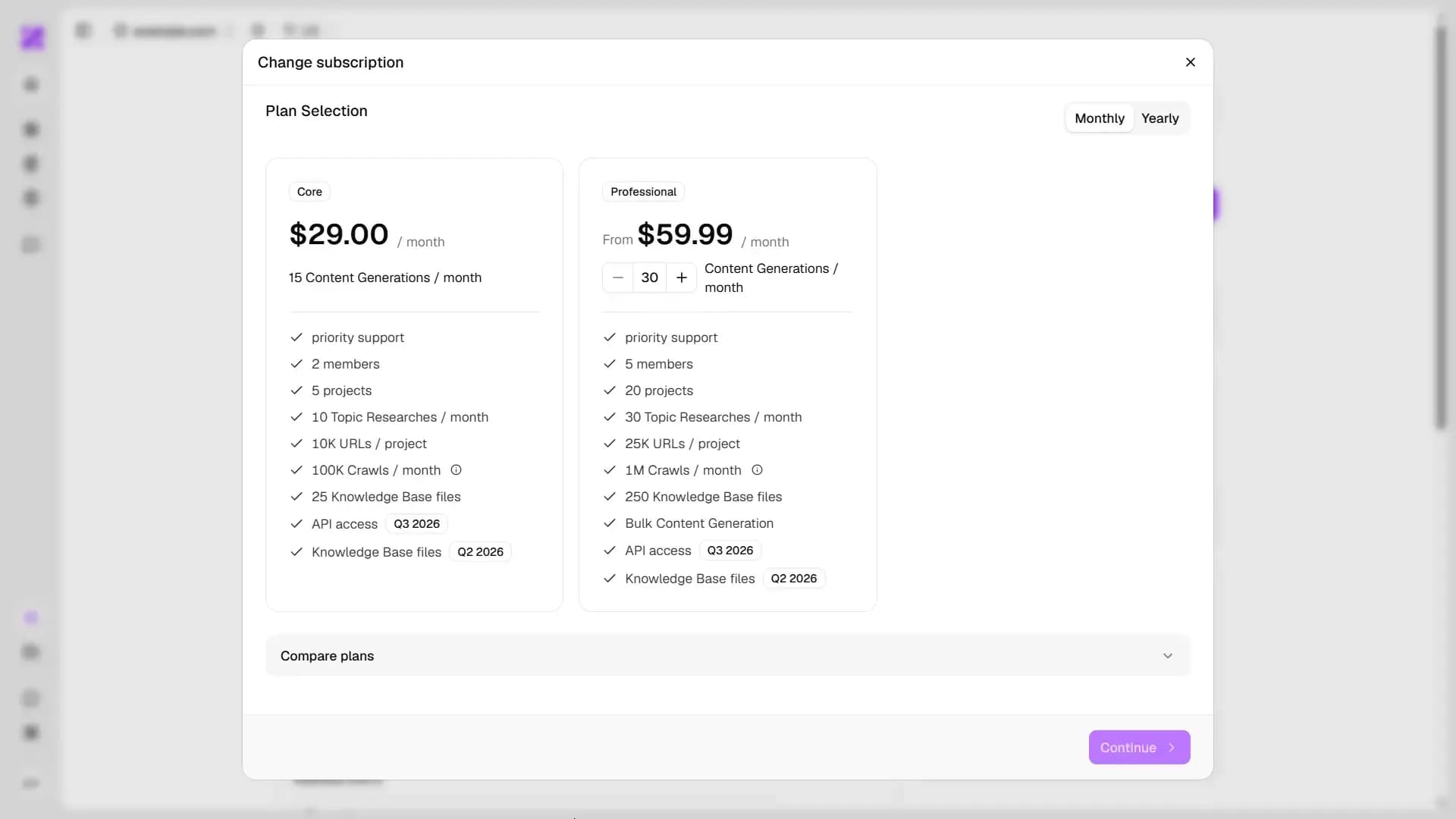
That's the screen you will see after specifying your Payment Details and Method under Update Plan (when on free Plan).
From no subscription
- Go to Organization → Billing.
- Click Choose new plan.
- Select a plan, set your generation volume if on Professional, choose monthly or yearly.
- Click Go to checkout, fill all necessary Payment Details and complete payment.
Invoice Details
The Invoice Details section lets you set a company name that appears on your invoices instead of your personal name.
Company Name - enter your full legal company name and click Save.
Tax ID
You can add one or more Tax IDs to appear on your invoices:
- Click Select type to choose the ID type (e.g. VAT, EIN).
- Enter the ID number.
- Click + Add new to save.
Multiple Tax IDs are all included on every invoice.
Payment Methods
Click Add new in the Payment Methods section to add a credit or debit card. All payments are processed securely through our payment provider (Stripe).
If a payment fails, your account reverts to the Free plan at the end of the current billing period.
Billing Email
The Billing Email is the address where invoices are sent and where subscription management communications are delivered. It defaults to your account email.
To change it, enter the new email address in the Billing Email field and click Save.
Cancelling Your Subscription
- Go to Organization → Billing.
- Click Cancel subscription in the Your Subscription card.
- Confirm the cancellation.
Cancellation takes effect at the end of the current billing period. You retain full access to your plan's features until then. After the period ends, your account reverts to the Free plan - all your projects, canvases, and content are preserved.
Invoices
Invoicing happens automaticly. You will recieve an invoice via E-mail (specified in Billing Email section in Billing tab). Default billing e-mail is the adress that you created your account with.