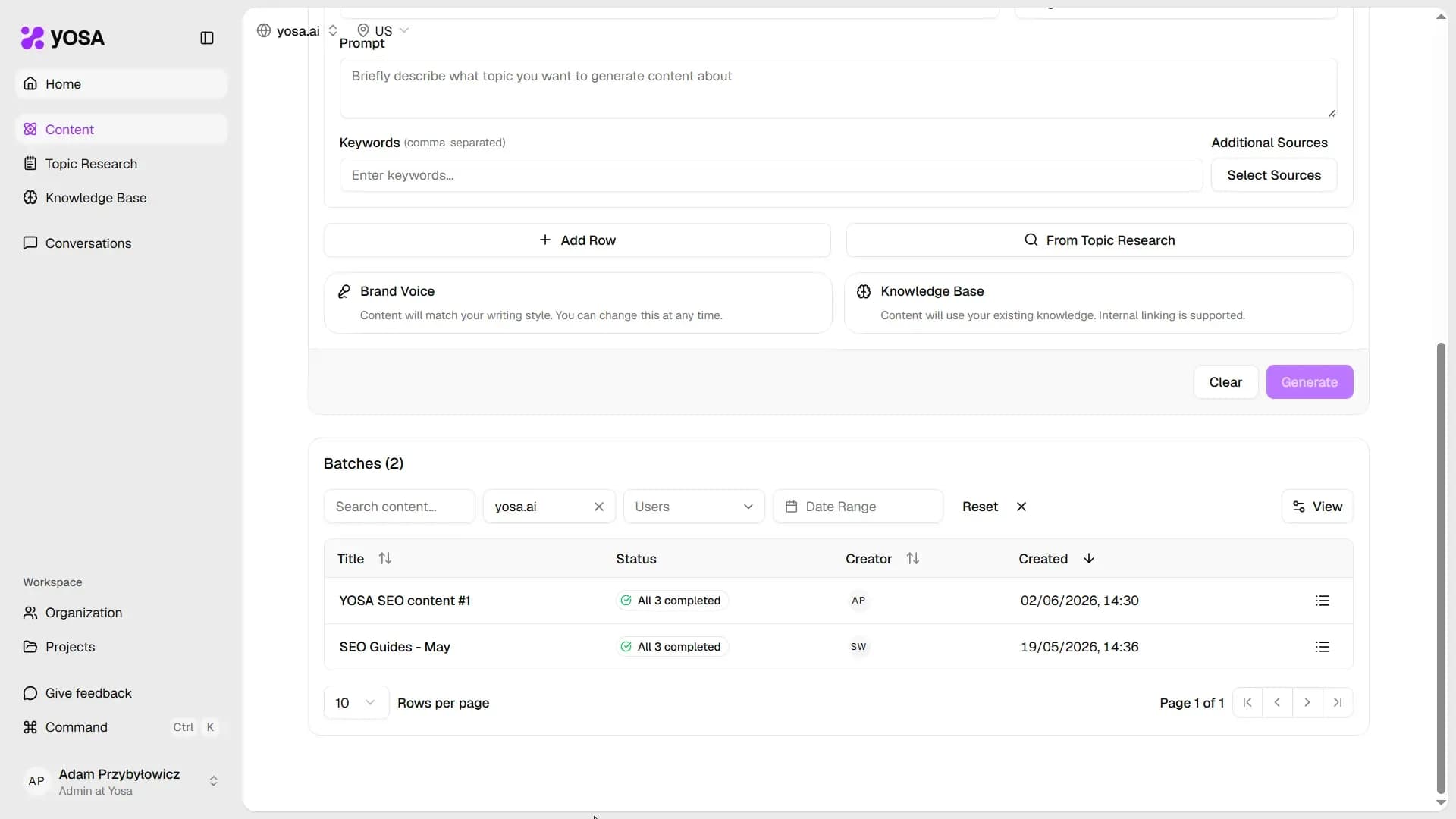
Use Bulk mode to generate multiple pieces of content in a single batch. Access it by going into Content → Bulk Generations.
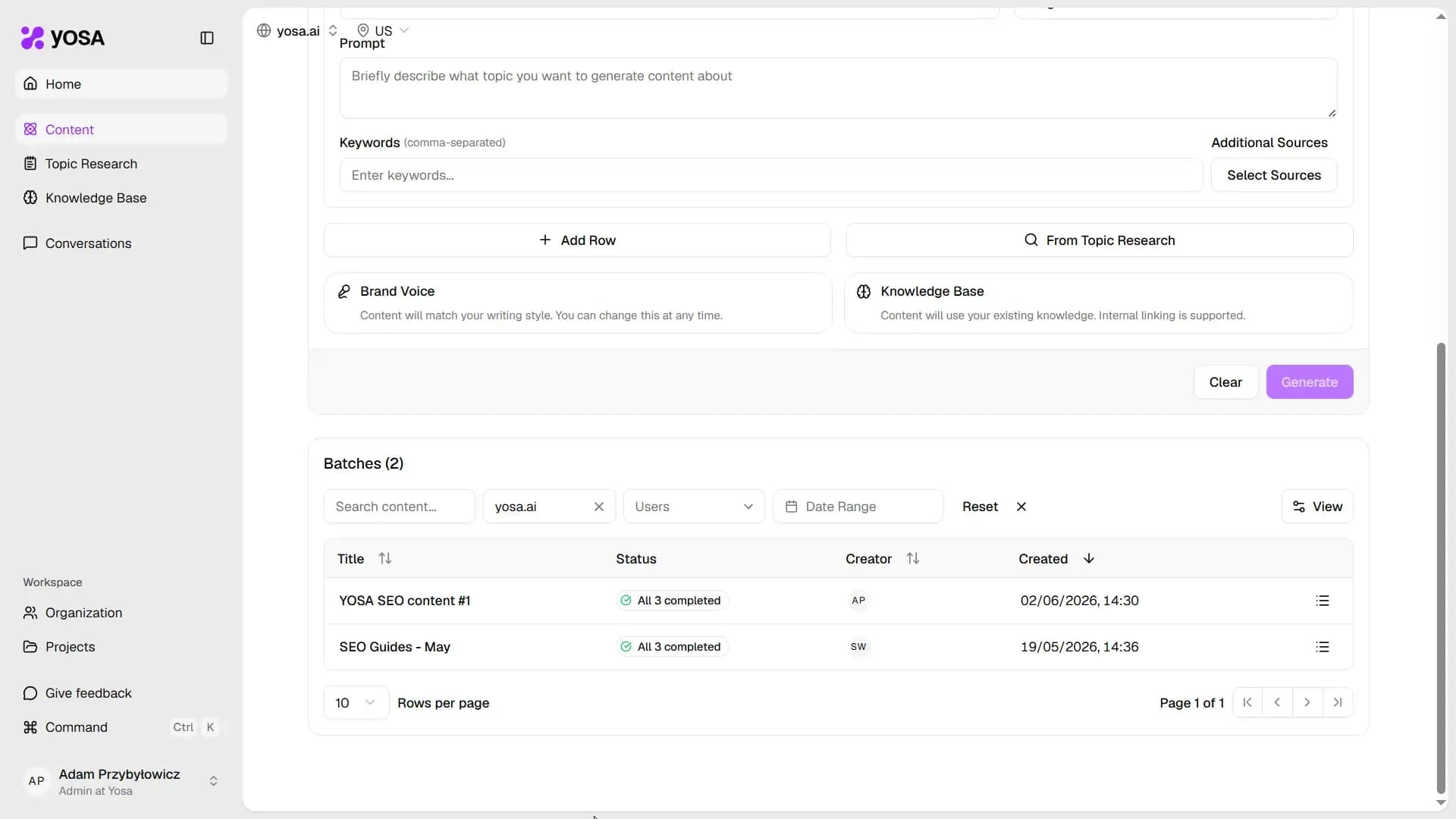
How to set up a bulk content generation batch
- Enter a Job Name to identify the batch.
- Add rows - each row is one piece of content with its own Prompt, Content Type, Keywords and optional Title/Additional Sources .
- Click + Add Row to add more items manually, or From Topic Research to populate the list from a saved topic research.
- Click Generate.
How to set up a batch via file import
- Enter a Job Name to identify the batch.
- Click Import in the top-right of content generation page.
- Prepare and upload a CSV file with your content details within the expected data structure.
- Make sure that your data was imported correctly
- Click Generate.
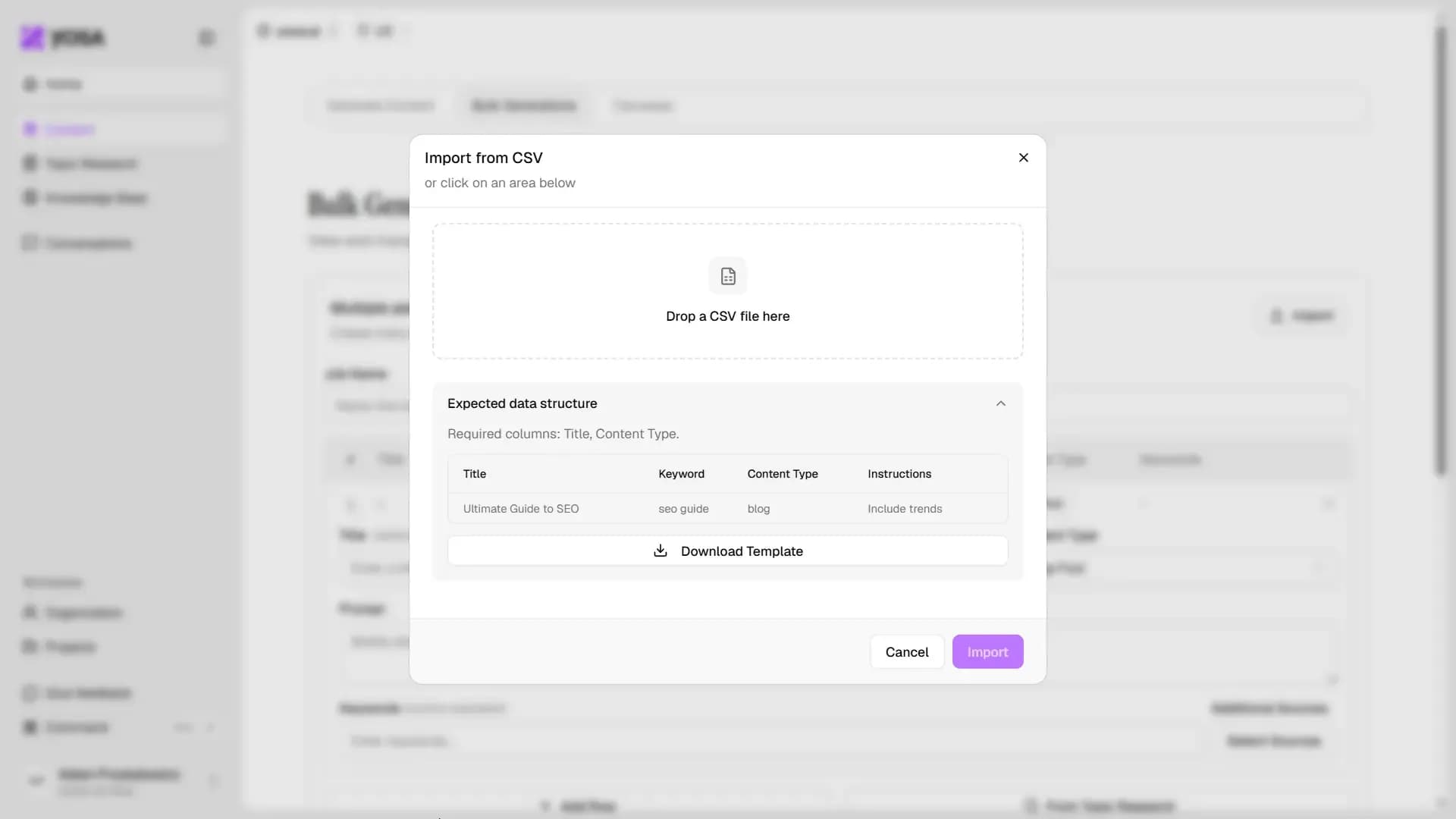
You can download CSV file example (with expected data structure) in Import window.
Tracking batches
All batches are visible in Bulk Generations tab under the generation form.