YOSA's interface is built around a single sidebar that gives you access to all core features - Content Generation, Topic Research, and Knowledge Base. This page walks you through every part of the UI so you know exactly where to go.
The Sidebar
The sidebar is your main navigation panel, always visible on the left.
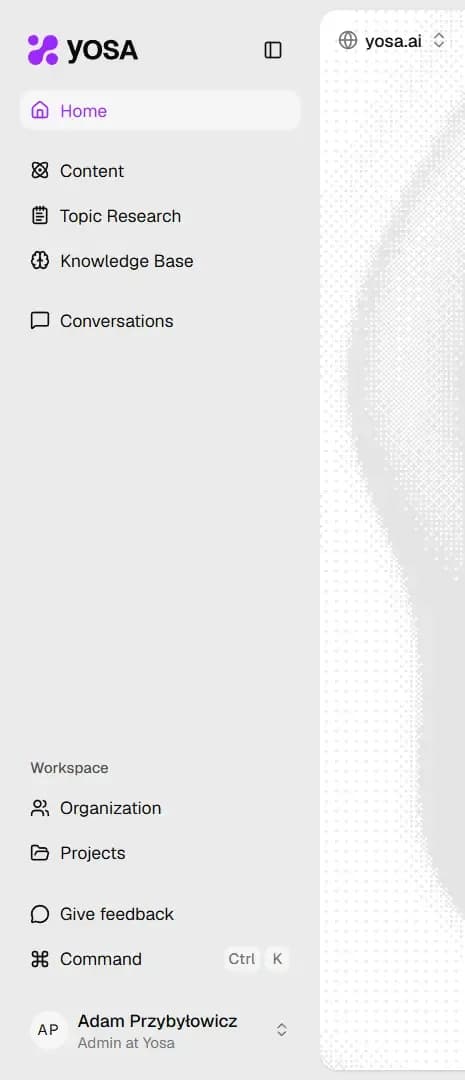
Top section
Element | What it does |
Home | Get to the YOSA homepage (Content generation) |
Content | Access all your generated content, bulk generation and canvases. → Learn more |
Topic Research | Jump directly to the Topic Research tool. → Learn more |
Knowledge Base | Manage knowledge base of your project → Learn more |
Conversations | Browse your conversations with YOSA (created during content edits in canvas) |
Workspace section
Element | What it does |
Organization | Manage your team, projects, billing, and settings. → Learn more |
Projects | Open Projects tab → Learn more |
Give feedback | Open a support request or get in touch with the YOSA team. |
Command | Open the Command palette ( |
Top Bar
The top bar shows two dropdowns that determine the context for your work.
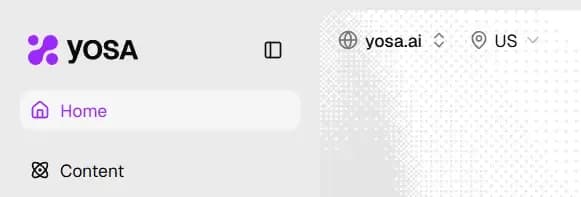
- Project selector (left) - shows the currently active project (website). Click it to search and switch between your projects. Everything you create (content, topic research) is tied to the selected project.
- Language selector (right) - sets the language for content generation and SERP data in the current project.
User Menu
Click your name or avatar in the bottom-left corner to open the user menu.
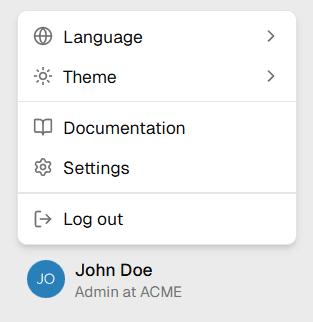
Option | What it does |
Language | Change he interface language |
Theme | Switch between Light and Dark mode |
Documentation | Opens these docs :) |
Settings | Access your personal account settings |
Log out | Log out of YOSA |
Changing the Theme
YOSA supports both Light and Dark themes.
- Click your name in the bottom-left corner.
- Hover over Theme.
- Select Light or Dark.
The change takes effect immediately - no page reload needed. Your settings are saved on your device/browser.