When you add a project to YOSA, you'll be prompted to verify ownership of the domain. Verification significantly expands how much of your site YOSA can crawl and index - without it, Knowledge Base building is heavily limited and you're not using full crawling limits within your plan.
Where to find the domain verification
The verification screen shows up during Project creation, right after the Brand Voice step - whether you accept the generated Brand Voice or skip it. It is the last step of the flow.
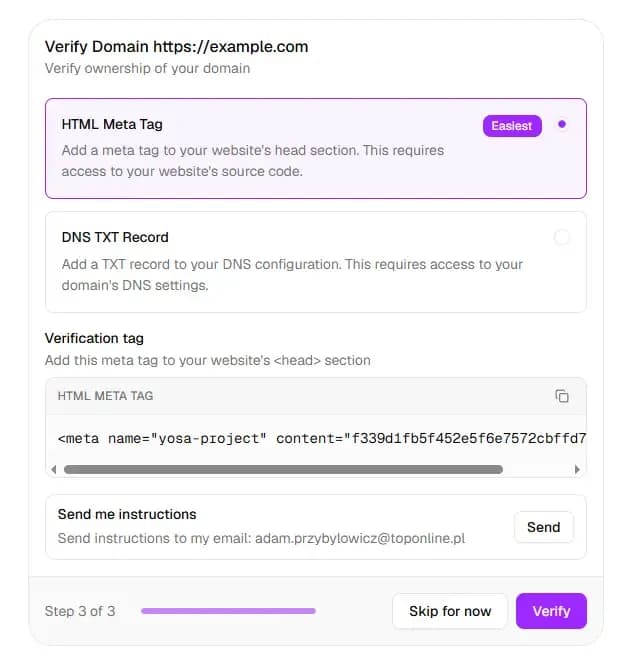
You can click Skip for now and come back to it later. Skipping does not affect anything except the crawl limit.
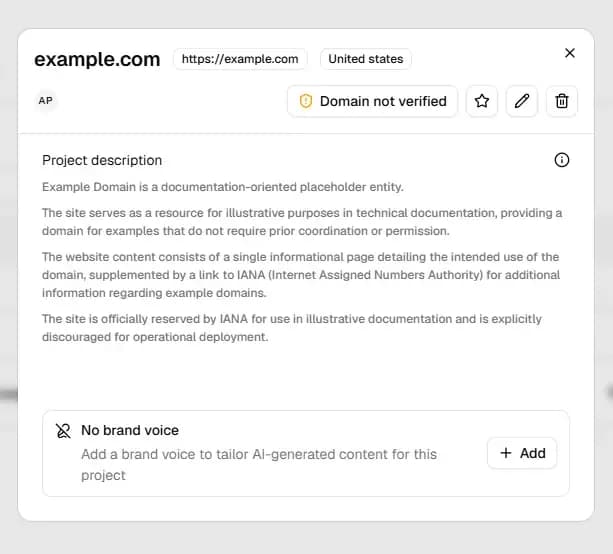
You can reopen the verification screen in your Project settings. Go to Projects → Your choosen project → click on “Domain not verified”
Verification methods
Choose one of two methods depending on what you have access to.
HTML Meta Tag (recommended)
Add a meta tag to the <head> section of your website's source code.
- Copy the tag shown in the Verification tag field:
<meta name="yosa-project" content="[your-unique-token]" /> - Paste it into the
<head>section of your site - ideally on every page, but the homepage is sufficient. - Publish the change so it's live on your site.
- Return to YOSA and click Verify.
DNS TXT Record
Add a TXT record to your domain's DNS configuration. This method doesn't require changes to your website's code.
- Copy the verification value shown after selecting DNS TXT Record.
- Go to your domain registrar or DNS provider (e.g. Cloudflare, GoDaddy, OVH).
- Add a new TXT record for your domain with the provided value.
- Wait for DNS propagation - this can take up to 48 hours, though usually much faster.
- Return to YOSA and click Verify.
Getting instructions by email
If you need to forward the instructions to a developer or someone with access to the site, click Send in the Send me instructions section. YOSA will email the full verification steps to your account email address.
Skipping verification
You can click Skip for now to add the project without verifying. The project will be created and crawling will begin, but Knowledge Base coverage will be significantly limited until verification is completed.
You can return to verify at any time from your project settings.
Troubleshooting
Verification fails after adding the meta tag
- Make sure the tag is in the
<head>section, not<body> - Confirm the page is publicly accessible - YOSA must be able to fetch it
- Check that no caching layer is serving an old version of the page
- Make sure the tag hasn't been modified - copy it directly from YOSA without editing
Verification fails after adding the DNS TXT record
- DNS changes can take time to propagate - wait an hour and try again
- Confirm the record was saved correctly in your DNS provider's panel
- If using Cloudflare, make sure the record is set to DNS only (grey cloud), not proxied
I skipped verification and my Knowledge Base is limited
- Go to Projects, find the relevant project, open its settings, and complete verification from there.
If verification continues to fail after following these steps, contact us at [email protected].
Next Steps
- Organization - Projects - manage your projects
- Knowledge Base - understand how YOSA indexes your site
- Troubleshooting - crawler access issues