The Projects tab lists all projects (websites) in your organization.
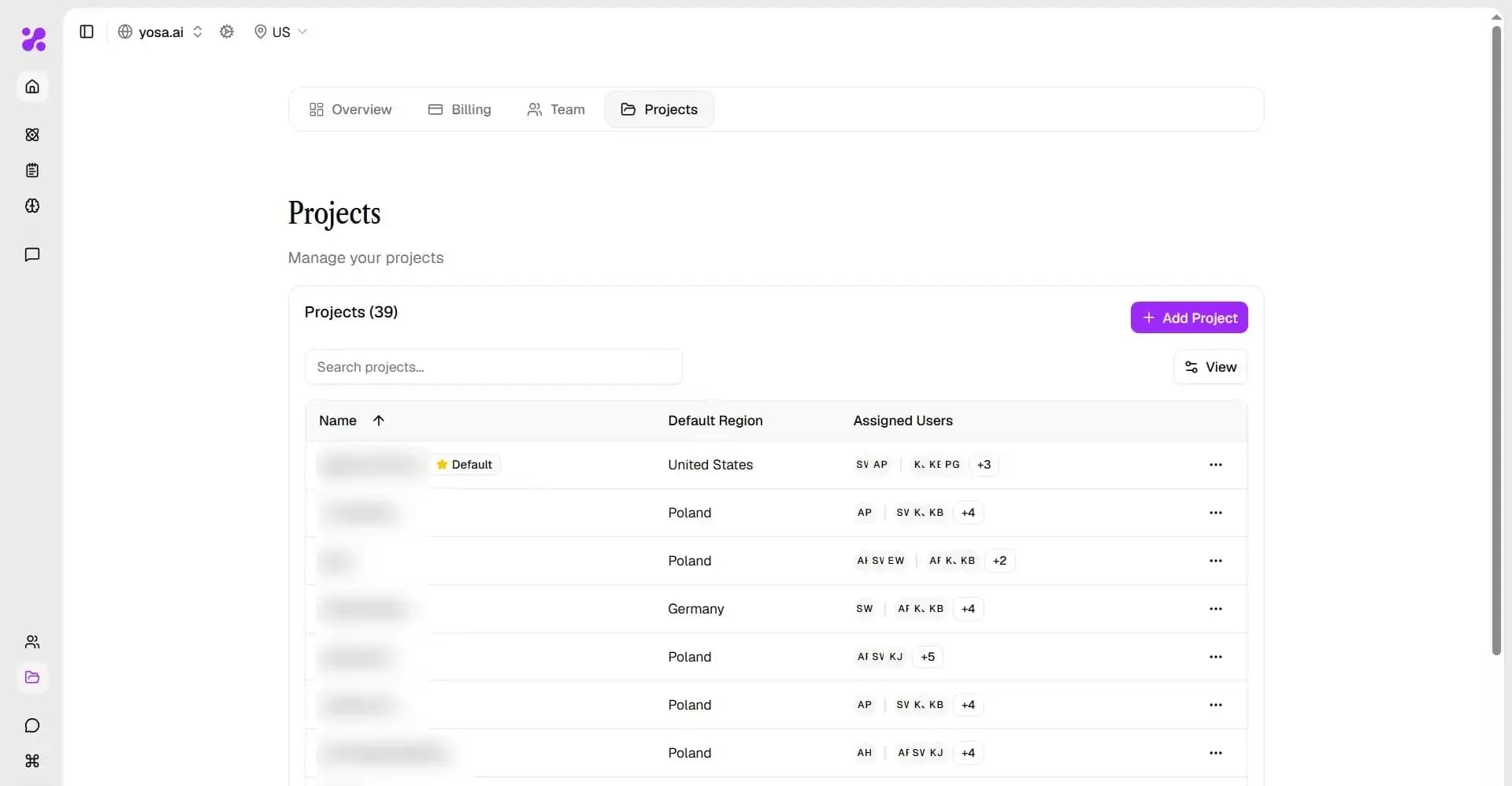
Each row shows:
- Project URL
- Default Country (used for SERP data)
- Assigned Users (avatars with overflow count)
- Default star (marks the default project)
- Edit icon
Adding a Project
Click + Add Project in the top-right corner.
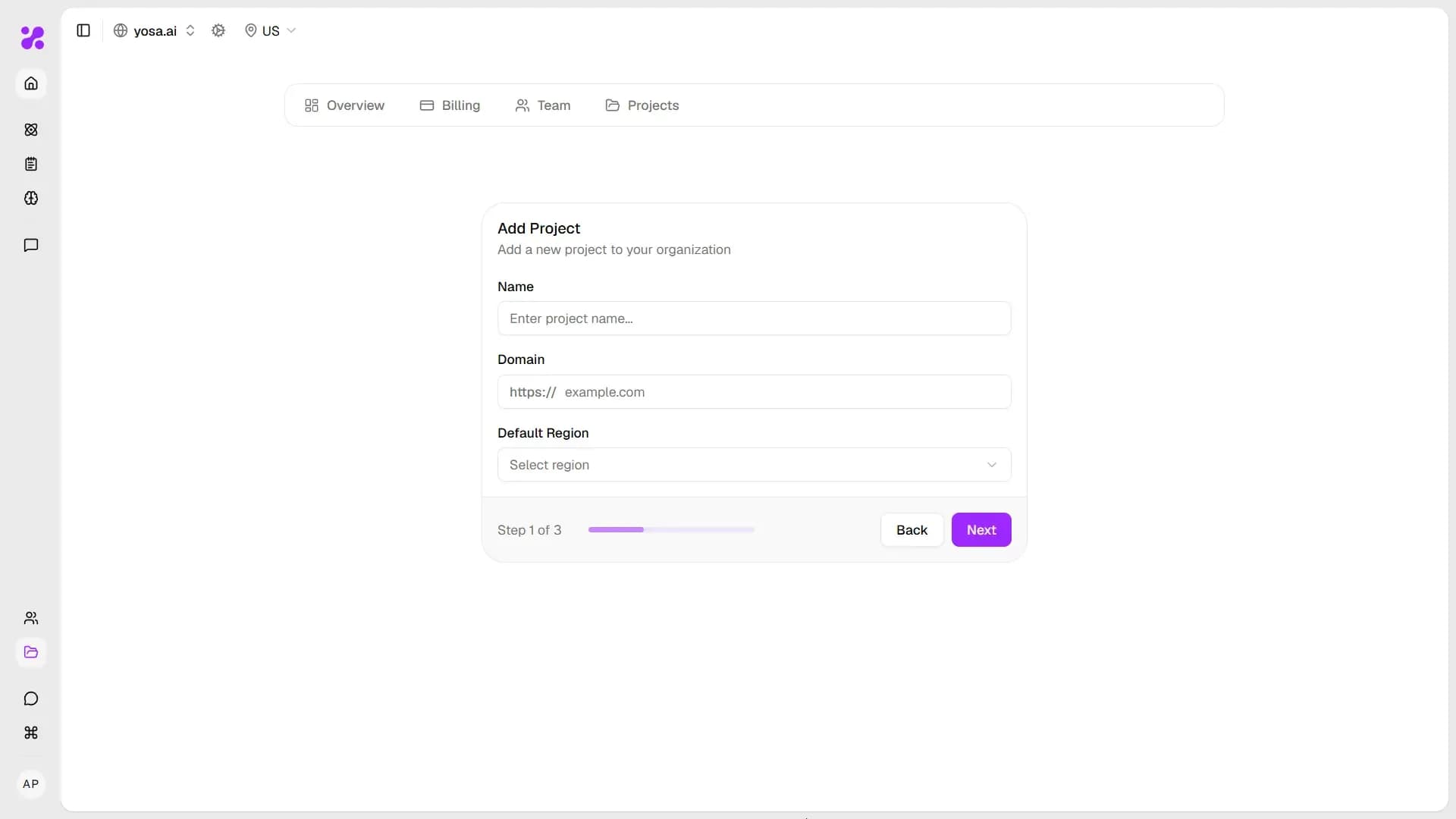
Fields:
Field | Description |
URL | The website domain for this project (e.g. |
Default Country | The target market used for SERP data in this project |
Set Default | Mark this project as the default across the organization |
Click Save to create the project. YOSA will begin crawling the site to build the Knowledge Base.
Editing a Project
Click on any project row to open the Project Details modal:
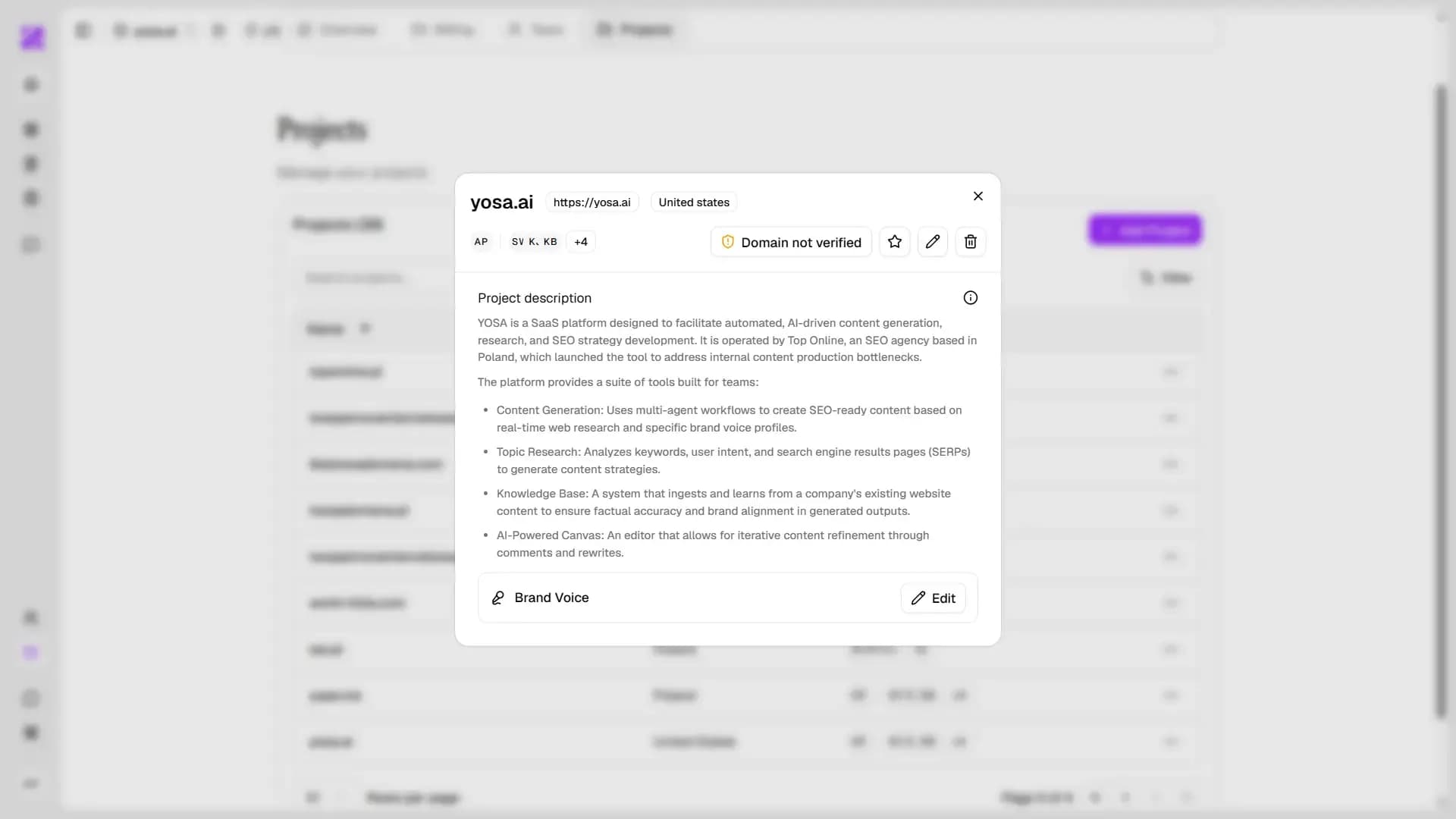
Then, click on the pencil icon to open Project settings:
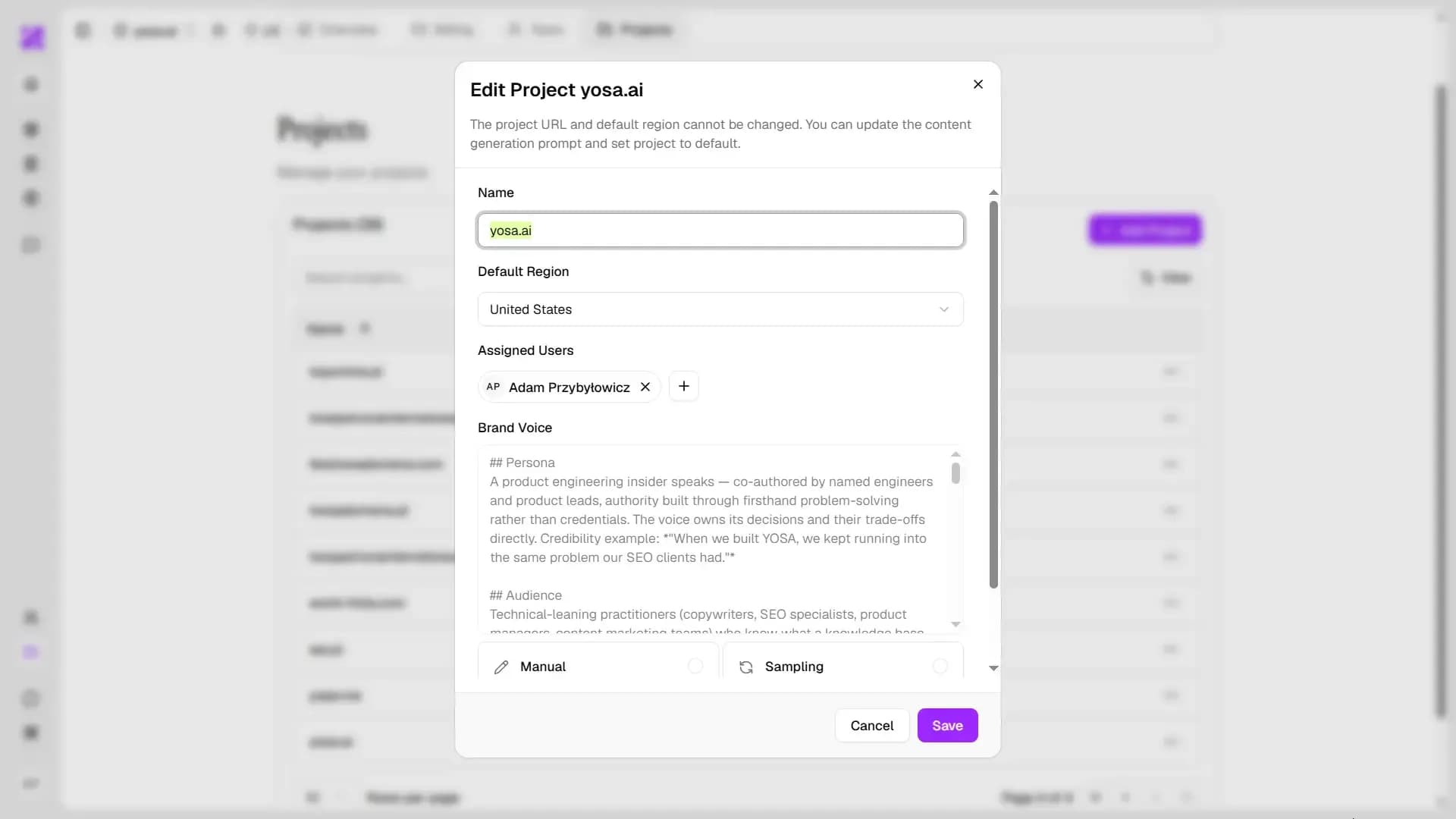
What you can change:
Field | Description |
Assigned Users | Add or remove team members who have access to this project |
Content Generation Prompt | A custom prompt applied to every content generation in this project — equivalent to project-level custom instructions |
Project Details & Settings
Click anywhere on a project row (outside the edit icon) to open the project details panel.
From here you can:
- Set as Default - make this the default project for your organization
- Manage your project Brand Voice - click Edit in Brand Voice section
- Edit - open the Edit Project window
- Delete - permanently remove the project and all associated data
Setting a Default Project
The default project is the one pre-selected in the project dropdown across YOSA. You can set it in two ways:
- Click the star icon on any row in the Projects list
- Open project details and click Set as Default