The Team tab lists all members of your organization, their email addresses, and their assigned roles.
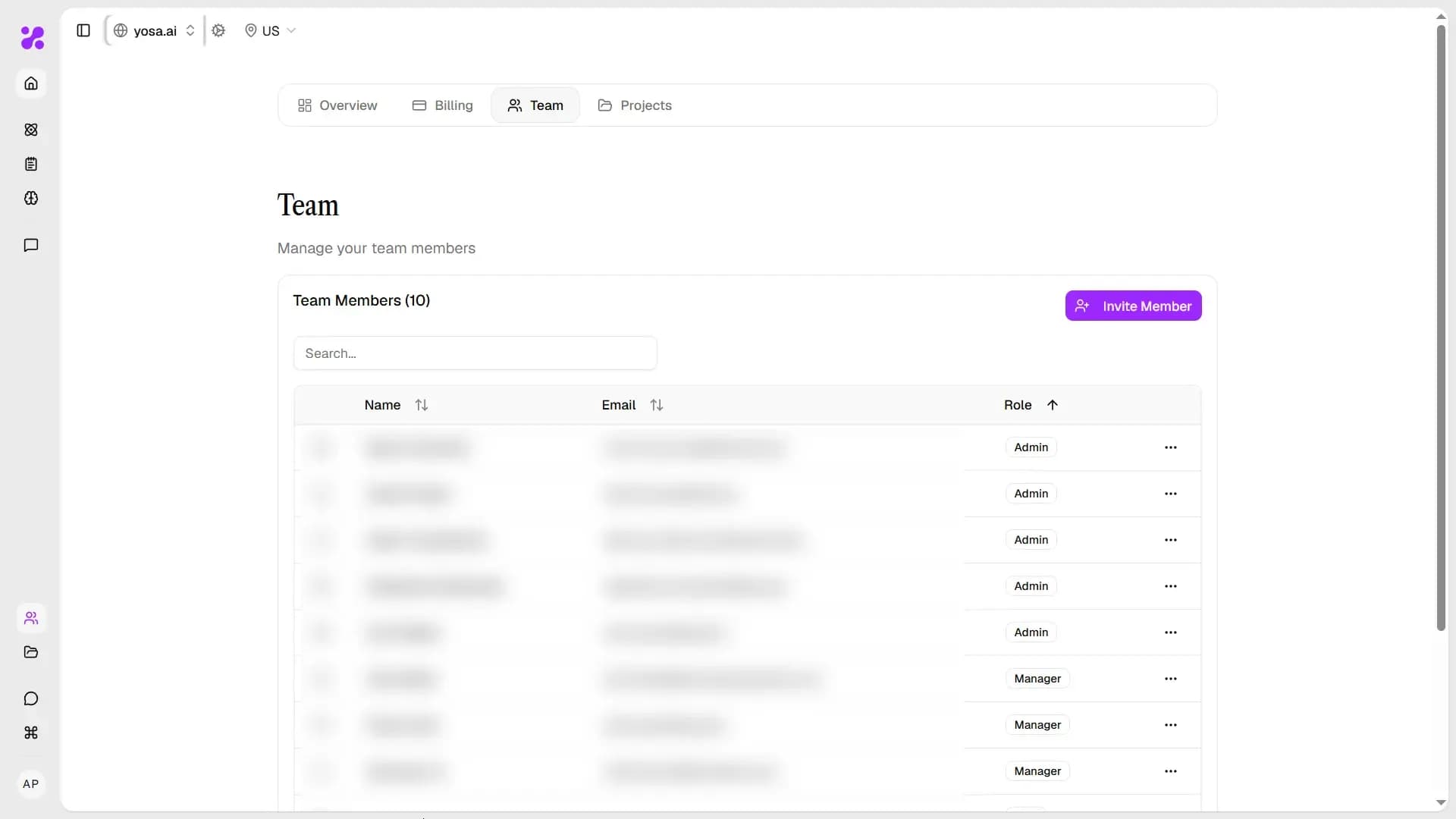
Each row shows:
- Member name and avatar
- Email address
- Role (User, Manager, or Admin)
- Edit icon (pencil) to open user details
Use the Search users… field to quickly find a specific team member.
Roles
YOSA has three access roles:
Role | Permissions |
User | Can view and create content |
Manager | Can manage team and content |
Admin | Full access to all settings |
Viewing and Editing a Member
Click on the user on the list in Team tab, then click the pencil icon next to any member to open their User Details panel, which shows their name, email, and current role.
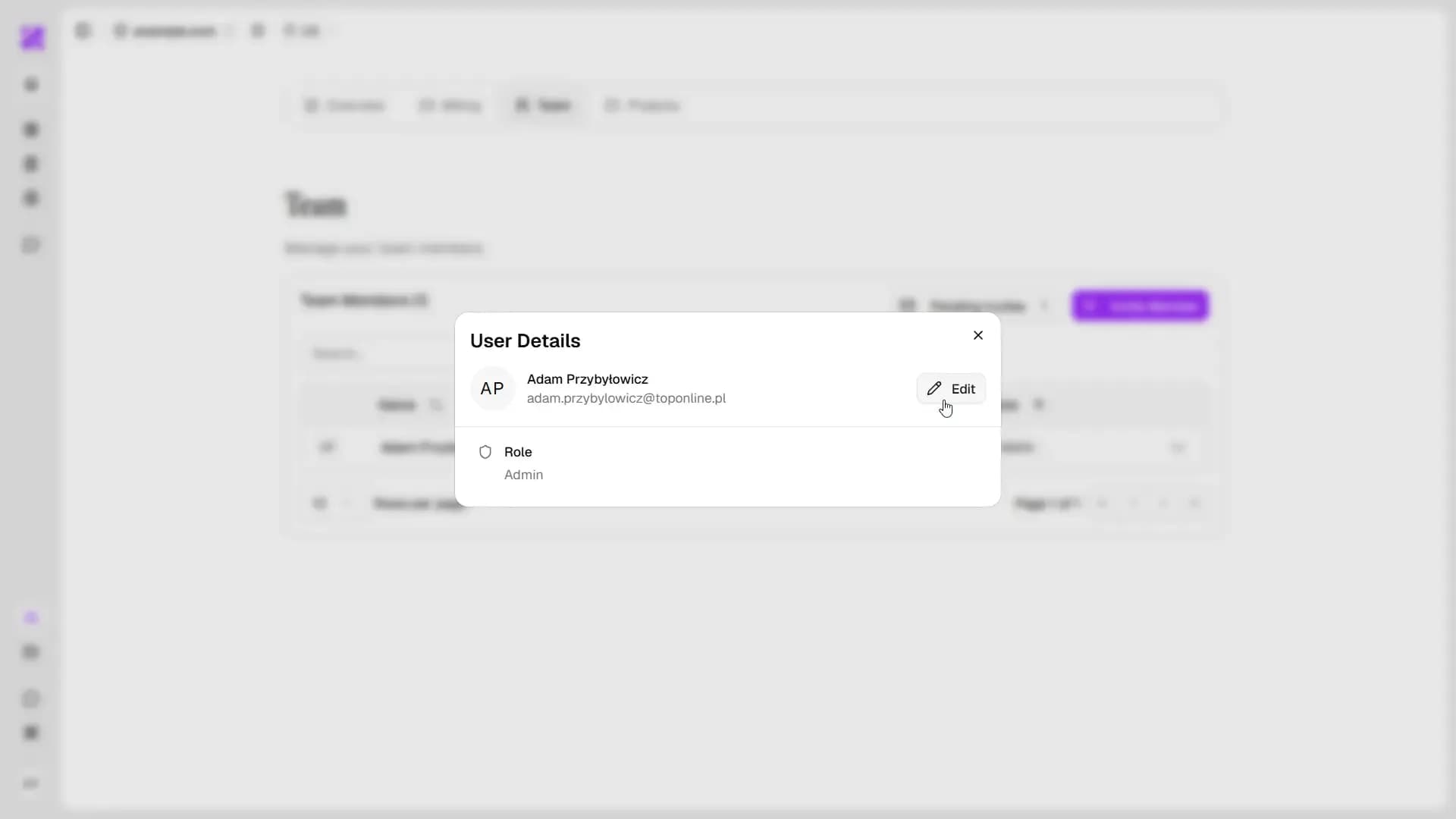
Then choose the role and Save to change their role.
Inviting a New Member
Click Invite Member in the top-right corner of the Team tab.
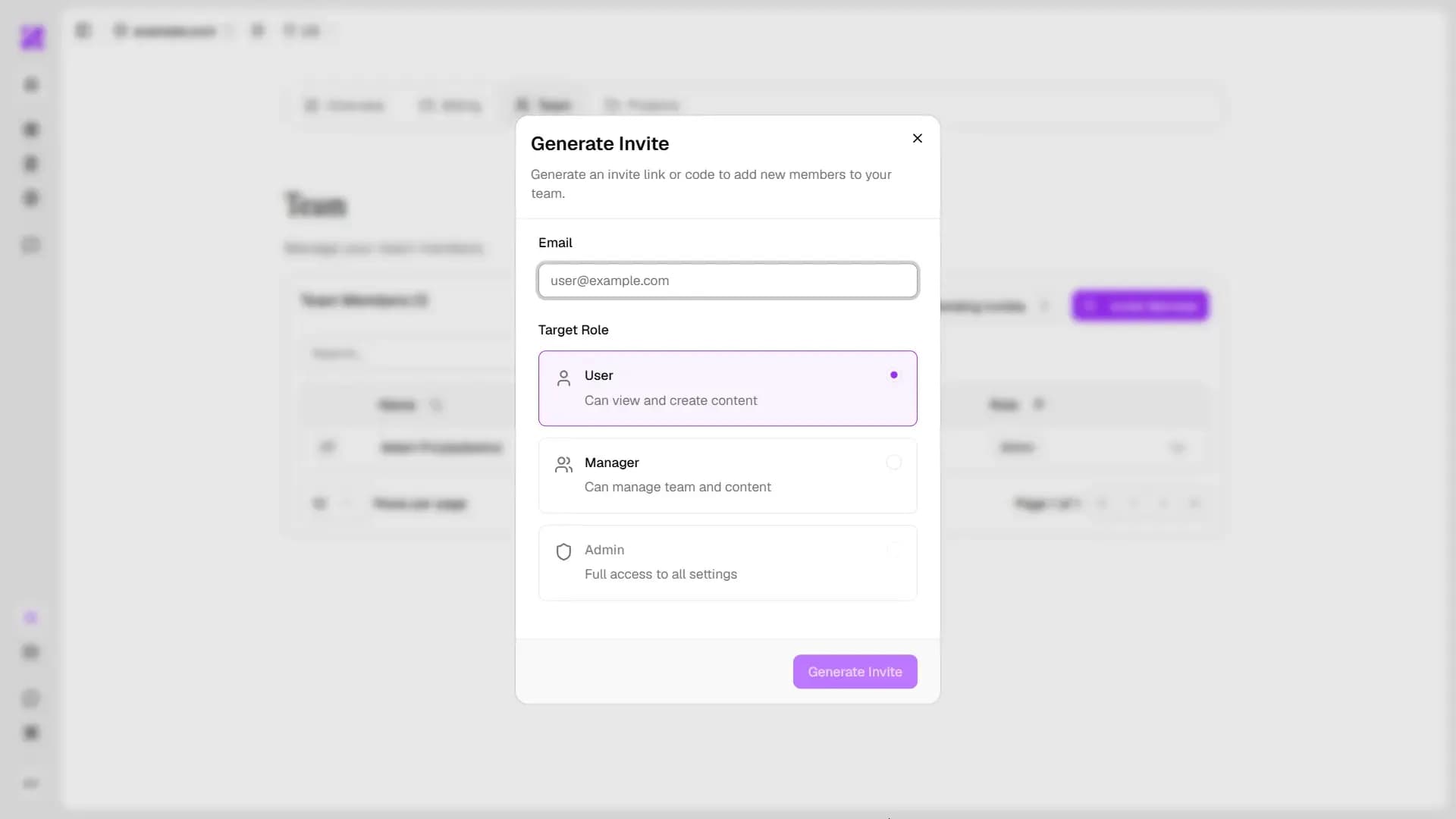
Fields:
Field | Description |
The email address of the person you're inviting | |
Target Role | The role they'll have when they join: User, Manager, or Admin |
Click Generate Invite to send the invitation. The invite is time-limited - the recipient must accept it by using the invite code before it expires.
Pending Invites
Click Pending Invites next to the Invite Member button to see all outstanding invitations.
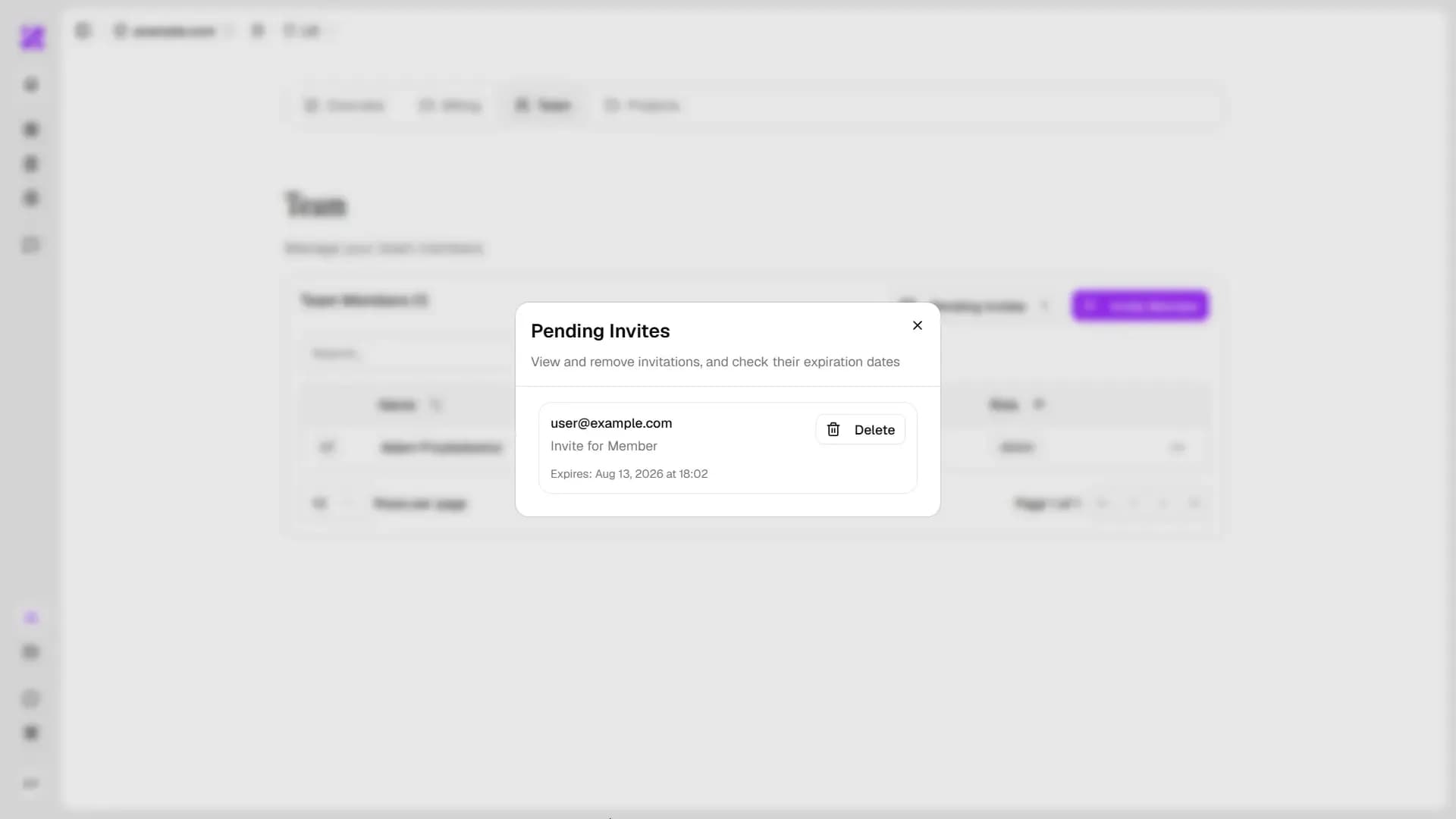
Each pending invite shows the recipient's email, their target role, and the expiry date and time. You can delete any pending invite from this view.