
If you want to get the best ranking SEO content in a few minutes, you need to learn how to use YOSA deliberately. Effective content requires a little bit of configuration and great input, not just a magic button.
YOSA runs a coordinated team of specialized AI agents to handle the heavy lifting, but you must guide them about your needs and define the boundaries.
Set up the Knowledge Base and Brand Voice
YOSA grounds itself in real information before any writing begins. However, just as you would do when working with a content agency, you need to check if the rules she wrote down match your actual needs.
Go to your project settings and review the assigned Brand Voice. You need to read it and adjust it to match your style (or the client's actual brief).
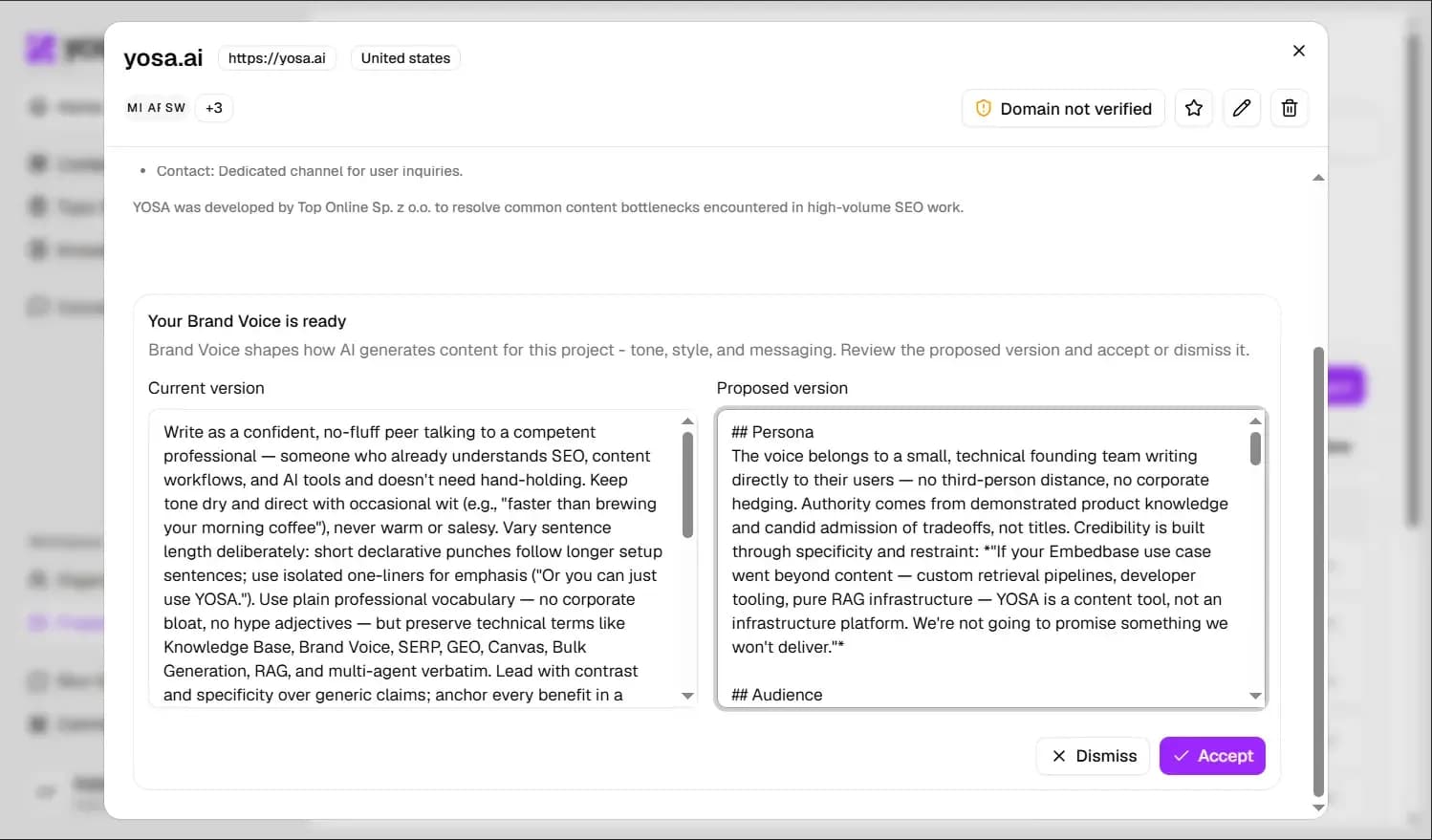
If the voice doesn't sound right, regenerate it. YOSA creates it based on randomly choosen URL-s, and websites can have very differently written pieces published, thats why sometimes it's not perfect on the first try.
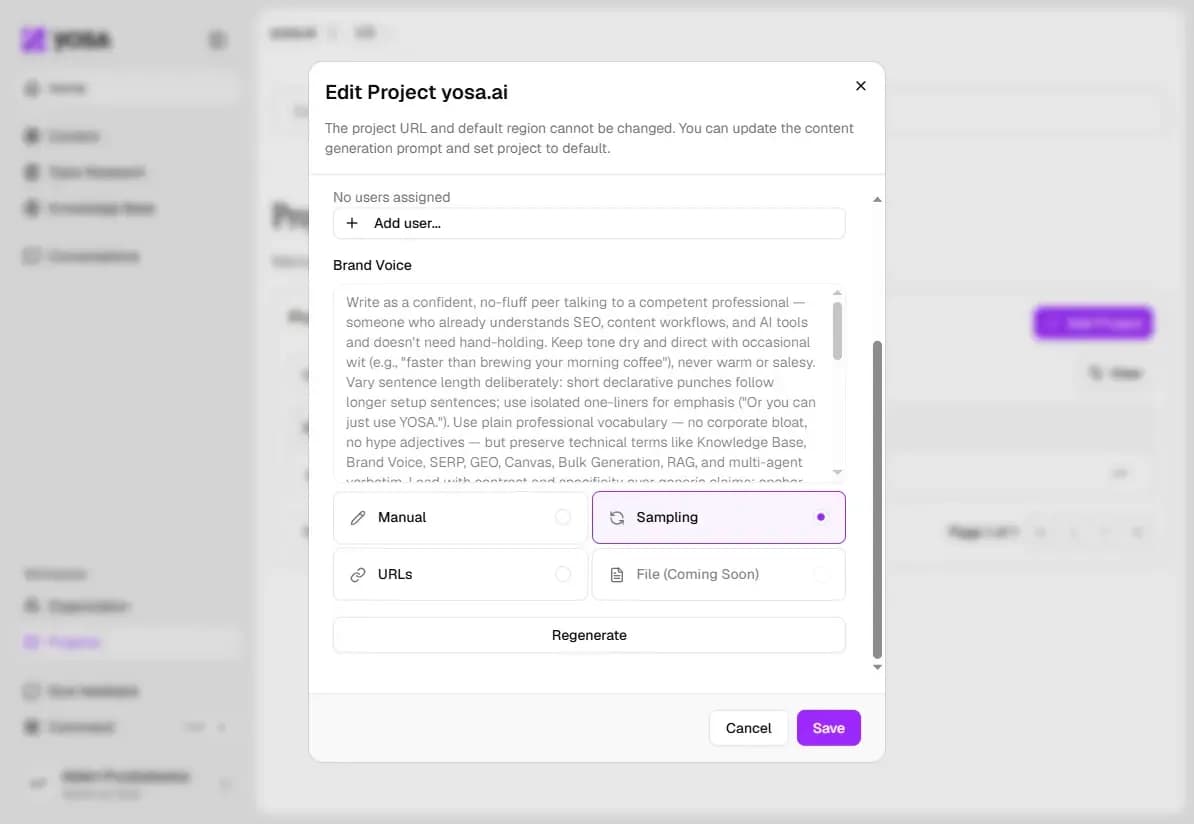
You can let YOSA try choosing random URLs again (sampling) or add up to five of your URLs as a style example (we recommend using the best pieces you have in the same content type that your are going to create).
Next, verify your Knowledge Base. YOSA automaticly crawls your website to read pages and understand structure, creating a personal index.
However, no system is perfect, so make sure all project subpages are crawled and current.
Soon, you will be able to upload client documentation and PDFs directly to the Knowledge Base to further ground the AI.
Configure the content generation form
1. Add title and keywords
Only specify a title if you have a rigid, specific requirement. Otherwise, leave the field blank. YOSA will generate title based on live SERP research and search intent signals.
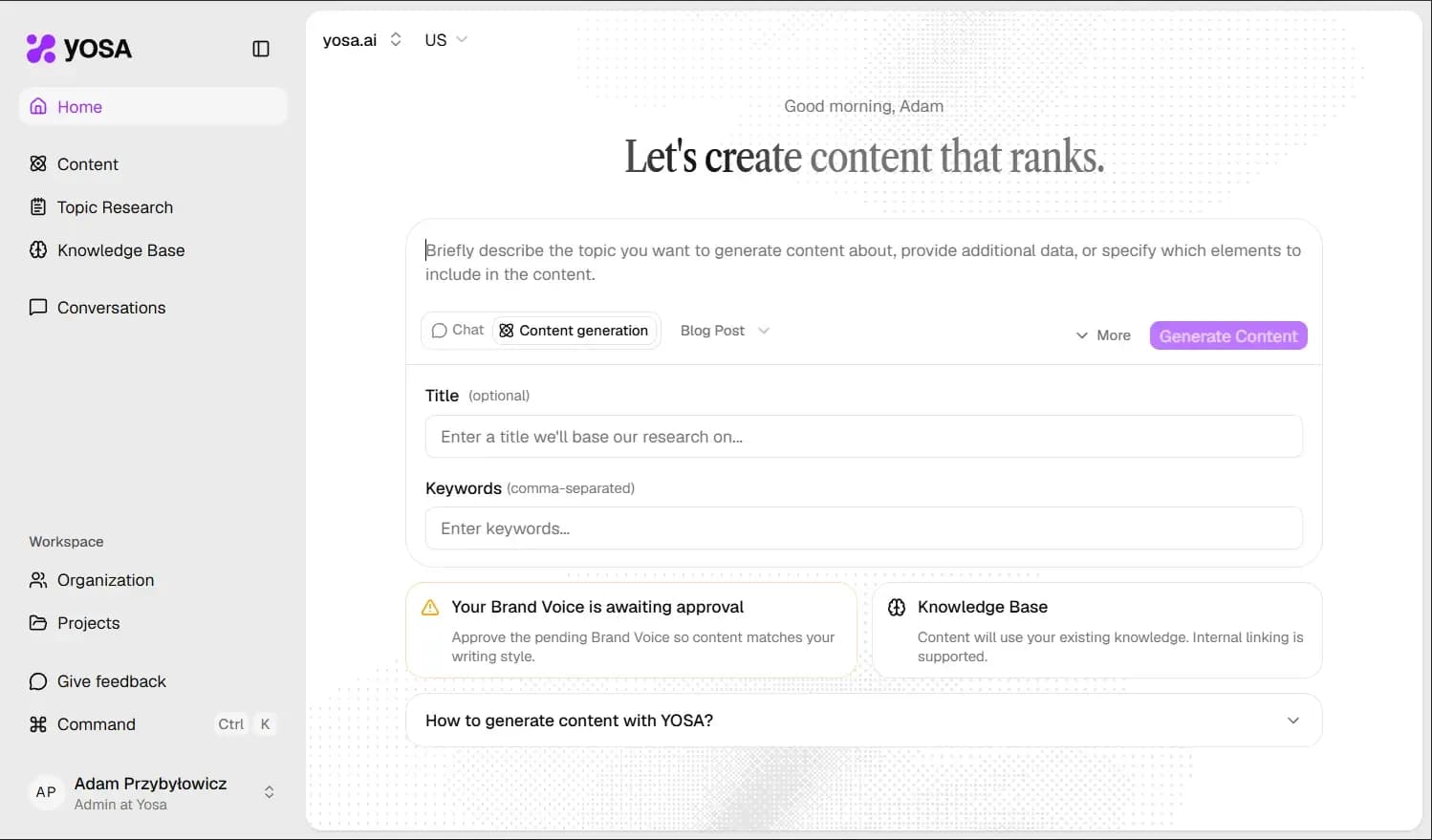
Enter your primary keyword, like "how to generate content with YOSA", followed by a few secondary terms separated by commas.
If you provide fewer than five, YOSA will automatically research and fill the additional keywords based on intent data.
2. Select content type
Next, select your target format from the content type dropdown. It actively alters the structural logic, headings, and formatting the AI agents will use during generation.
3. Describe your topic in the prompt
YOSA is great at researching a topic and structuring content on its own. You don't need to walk it through every heading.
In the main field, describe:
- the topic (what the text should be about, and what to avoid, if anything),
- the reader persona (who the text you're creating is aimed at),
- the structure: in what order to present information, and where a metaphor, example, table, FAQ, or CTA should go (optional),
- any hard data (e.g. service pricing, phone number, statistics) or quotes that must appear in the text (optional),
- point to your unique source of expertise on the topic: audit data, a case study, a real testimonial (optional).
Remember, that YOSA is an SEO tool, not an AI chatbot. Don't paste generic instructions like "just give concrete facts" or "make it engaging for the reader", also don't use AI formulas like "act as a marketing expert".
Instead of vague commands to "engage the reader", explain specificly how to do it.
Metadata generation happens automatically upon export, so there is no need to force it in the prompt.
Do this in your prompt | What to NOT do in your prompt |
Specify exact metaphor placement and real-life examples | Use generic "act as an expert" formulas |
Request required tables, quotes, and FAQs | Dictate HTML formatting or style choices |
Detail explicit topic exclusions and reader baselines | Paste dry briefs without structural context |
Demand specificity based on hard statistics | Use vague commands like "engage the reader" |
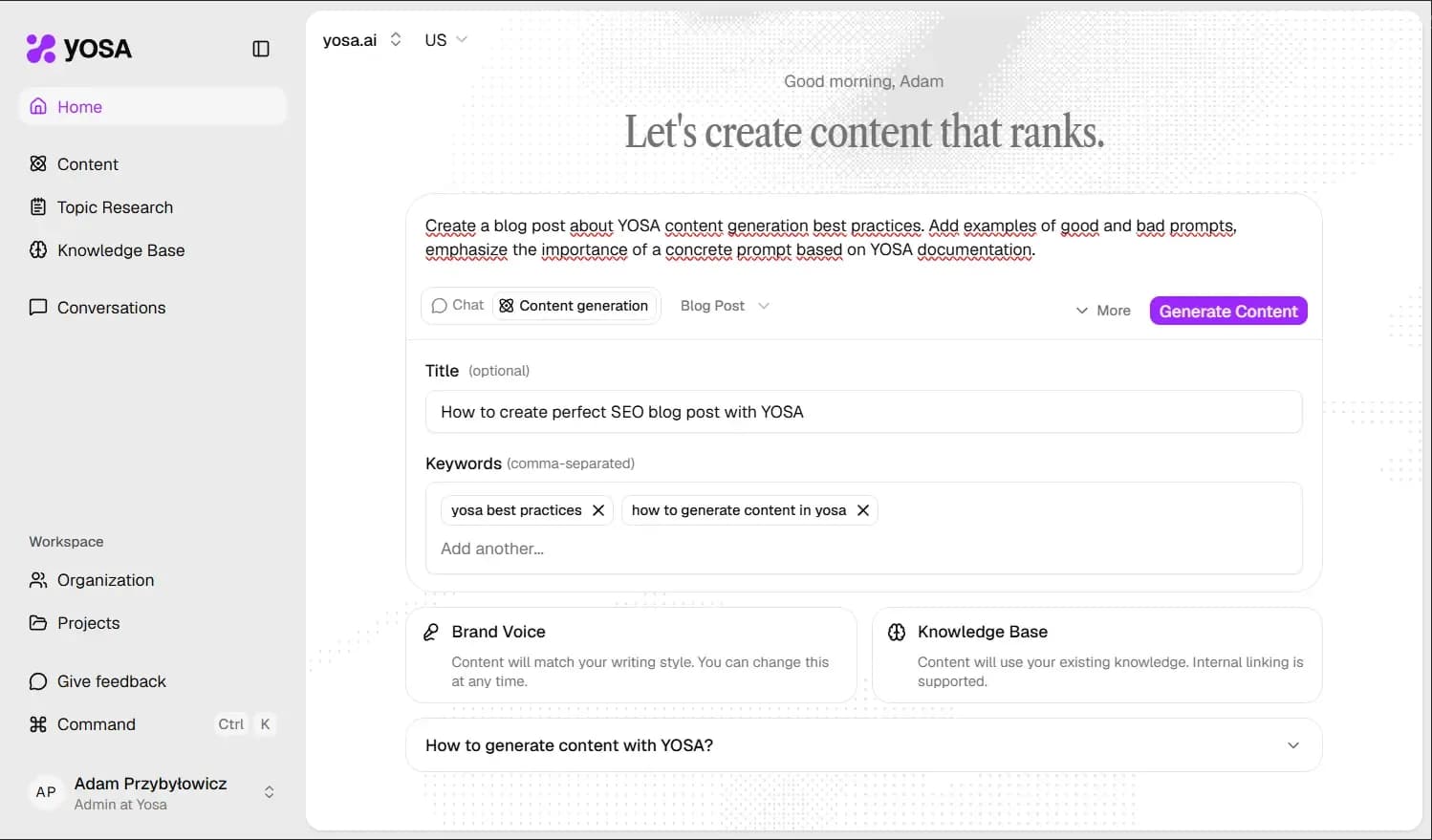
Prompt examples for YOSA content generation
To better understand how to guide the AI, compare these good and bad approaches.
Good prompt examples
Blog post about internal linking (SEO)
Write a blog post for junior SEO specialists about the importance of internal linking. Start with a metaphor comparing links to a city's road network. Include a table comparing 'No-follow' vs. 'Do-follow' attributes and a specific FAQ section covering 3 common mistakes (required blocks). Use data from our latest internal case study regarding crawl depth improvements.
Blog post about comparing two cars
Write a comparison article between 'Subaru Outback' and 'Toyota RAV4' for adventure-seeking families. Use a narrative that emphasizes safety in rainy conditions and trunk space for camping gear. Avoid technical jargon and focus o lifestyle benefits. Include a table summarizing towing capacity and fuel efficiency. Do not mention luxury features or high-end trims.
Blog post about gravel bikes
Write a blog article answering the question on many people's minds: "Is a gravel bike a good choice for me?"
- Describe who a typical gravel rider really is.
- List the scenarios where gravel shines and those where it would be a worse choice.
- Break down the real cost of entry.
- Recommend renting a gravel bike before buying and riding it on your typical terrain - for renting, I recommend Decathlon.
Bad prompt examples
"Act as" formula without details about the topic
Act as an SEO expert and write a blog post about SEO. Make it engaging for the reader and optimize it for search engines.
Prompt focused on keyword stuffing
Write 1000 words about why people should buy a used car. Use keywords like 'used cars', 'cheap cars', and 'best deals'. Make it rank high on Google.
Too vague and generic instructions
Please write a comprehensive and high-quality article about the future of digital marketing. Ensure it is interesting, informative, and uses a professional tone. Add some subheadings and a conclusion.
Verify pre-generation settings
Before you hit generate, run a quick clearance check:
- Expand the advanced settings to confirm the correct Brand Voice is assigned and active.
- Check the top bar panel to verify the correct target project and language are selected.
The project selector dictates which Knowledge Base and voice settings the system uses for the draft.
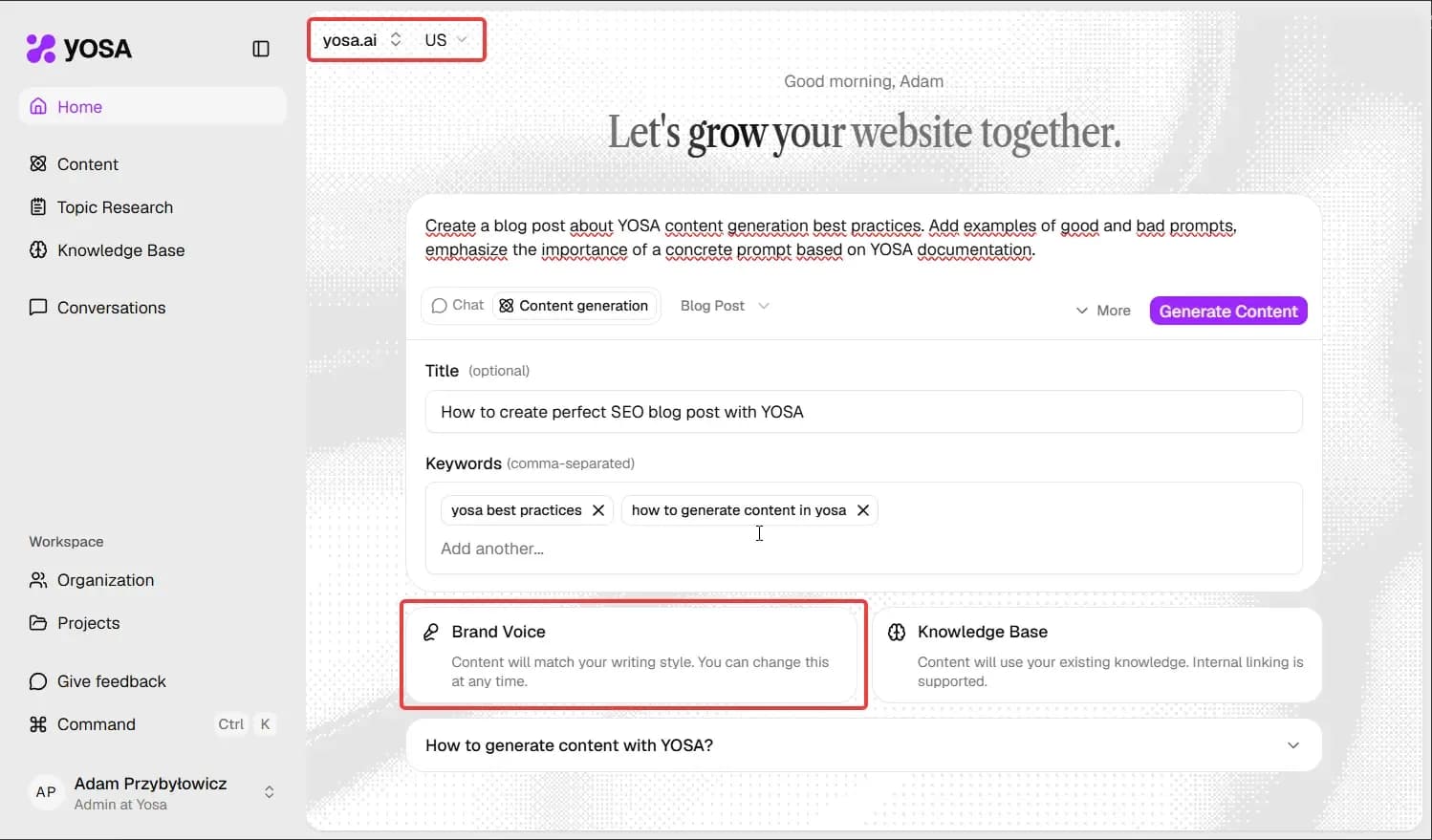
These visual checks take five seconds, yet, they eliminate the overhead of regenerating a deeply flawed draft due to a misaligned context.
Review and optimize the output
Once generation finishes, the result opens automatically, and you can go to the Canvas editor. Post editing optimization is about coherence checking and iterative refinement, not rewriting from scratch. You evaluate what the agents produced against your initial intent.
Analyze side panel metrics
Review the side panel data first.
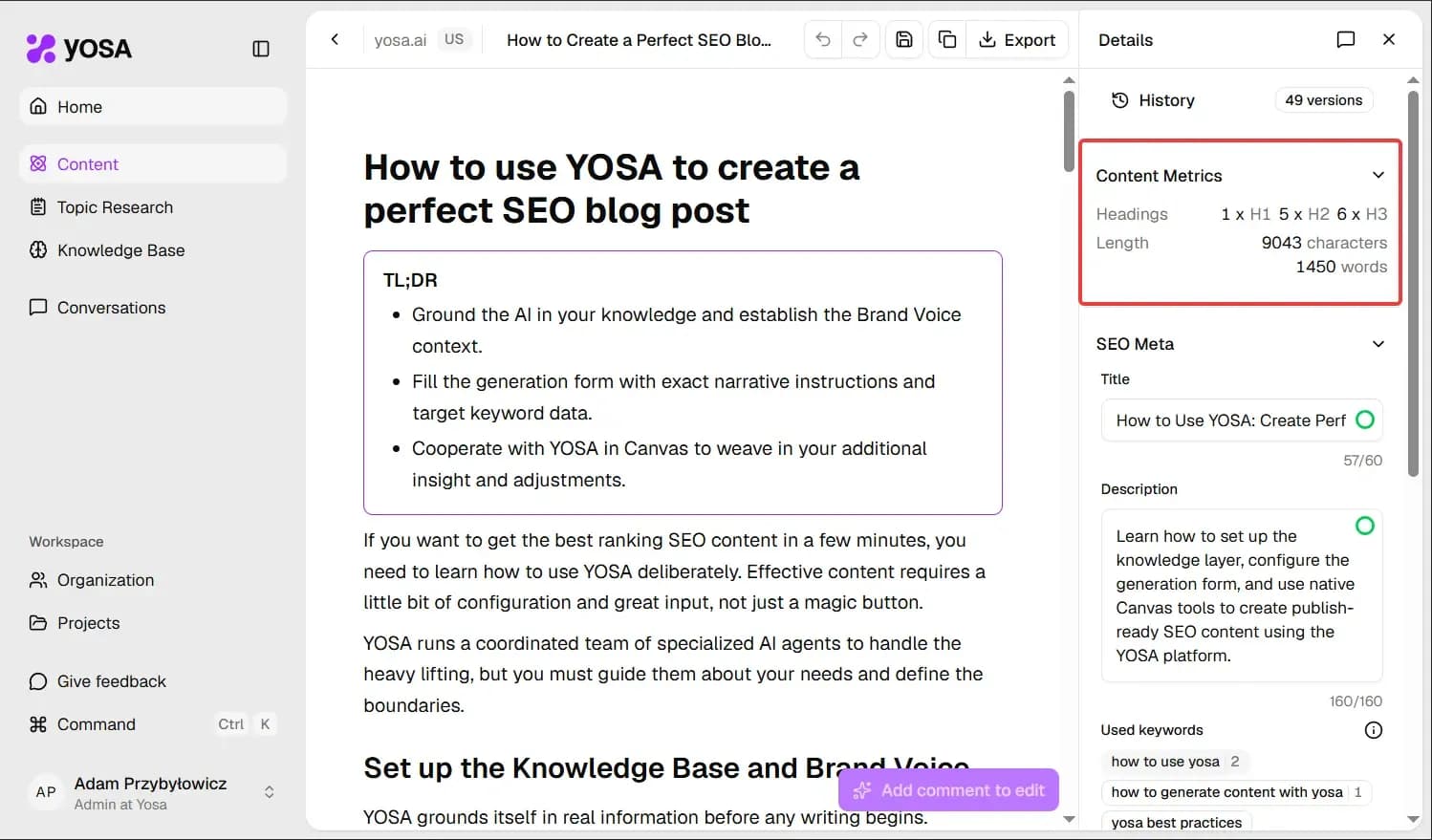
Check the number of headings, total length, keyword integration, and the specific sources used.
You compare these metrics against your starting assumptions to verify the AI agents stayed within the defined scope.
Refine through Canvas and chat
Read the text strictly for topic completeness and logical flow.
If something is missing, do not manually type it in. Just highlight the paragraph or a sentence and leave a comment detailing what is missing.
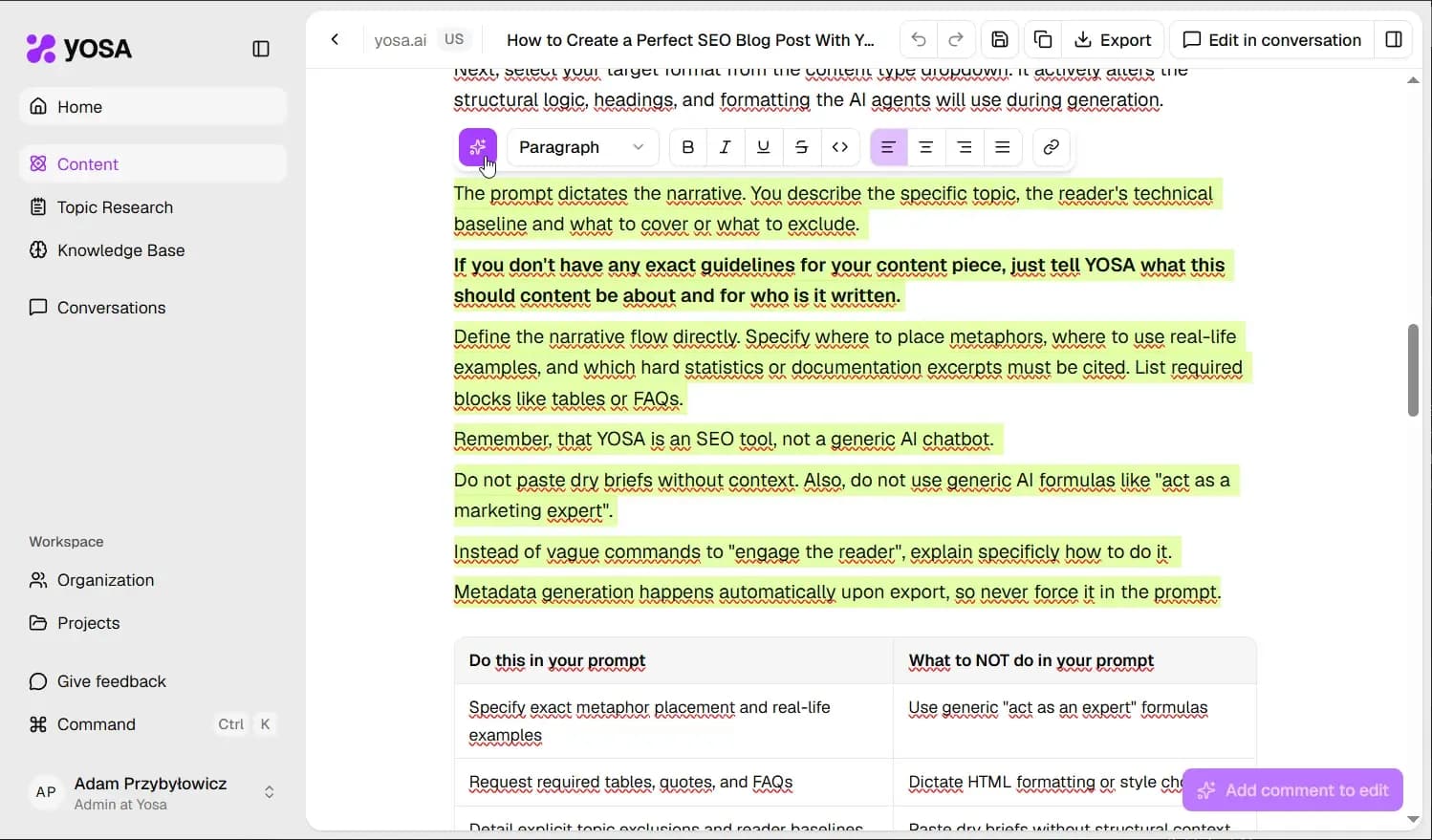
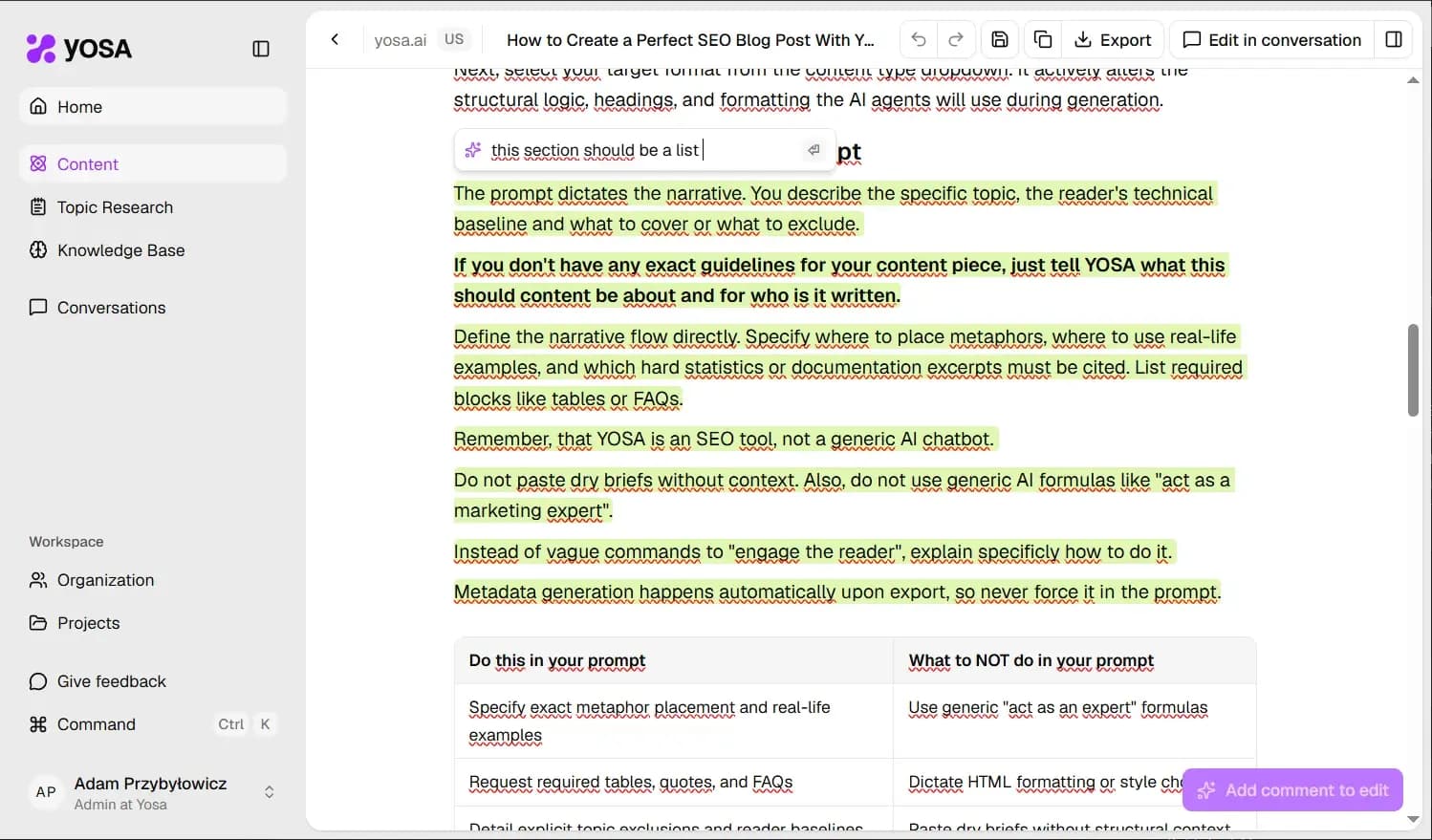
You can also comment on entire structural blocks, like tables, by clicking the block marker on the left side.
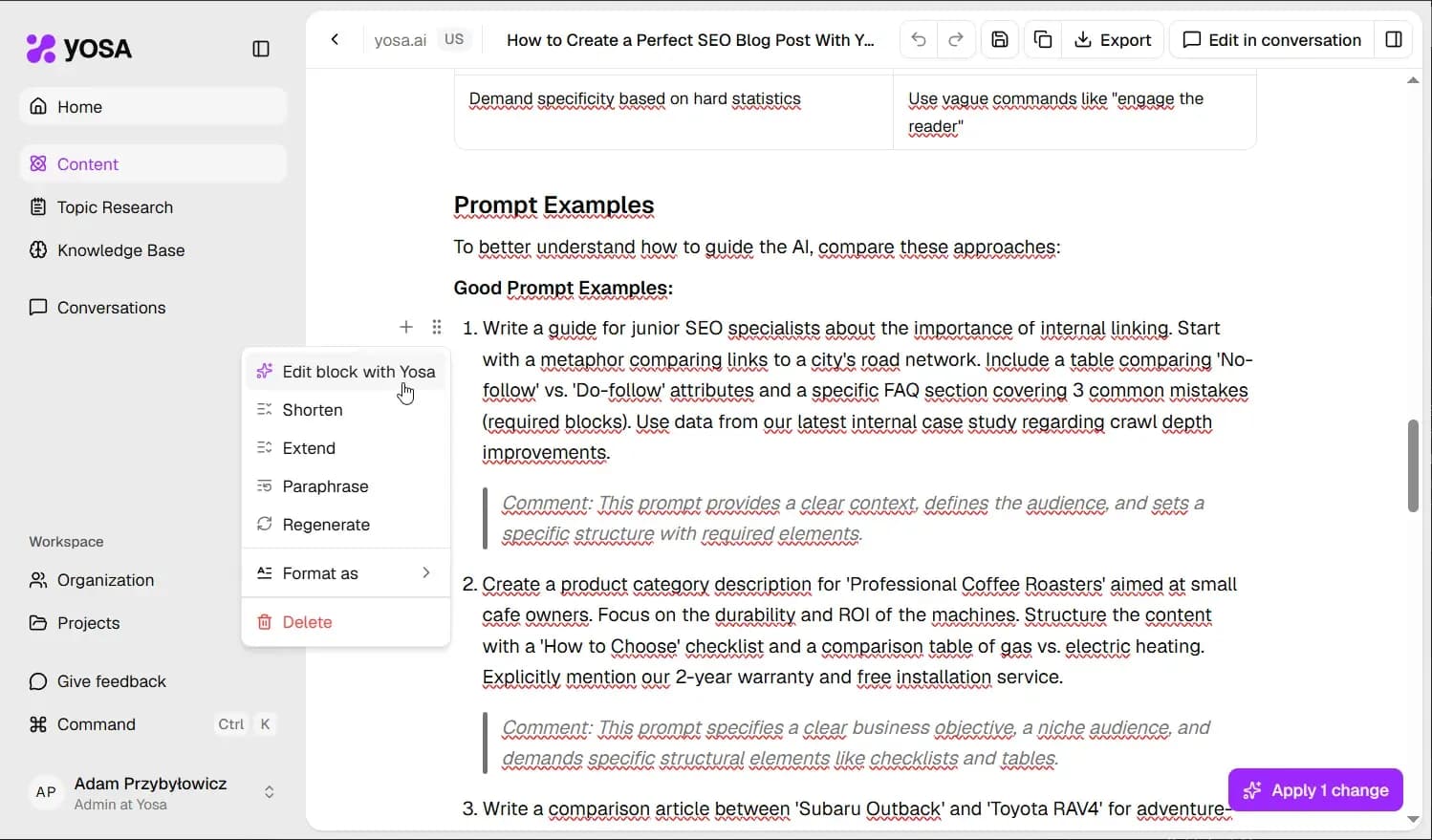
When you're ready with all your comments, apply changes so the AI weaves it in natively.
Alternatively, you can open the chat within the Canvas to request document-wide adjustments. To do this, just click "Edit in conversation"
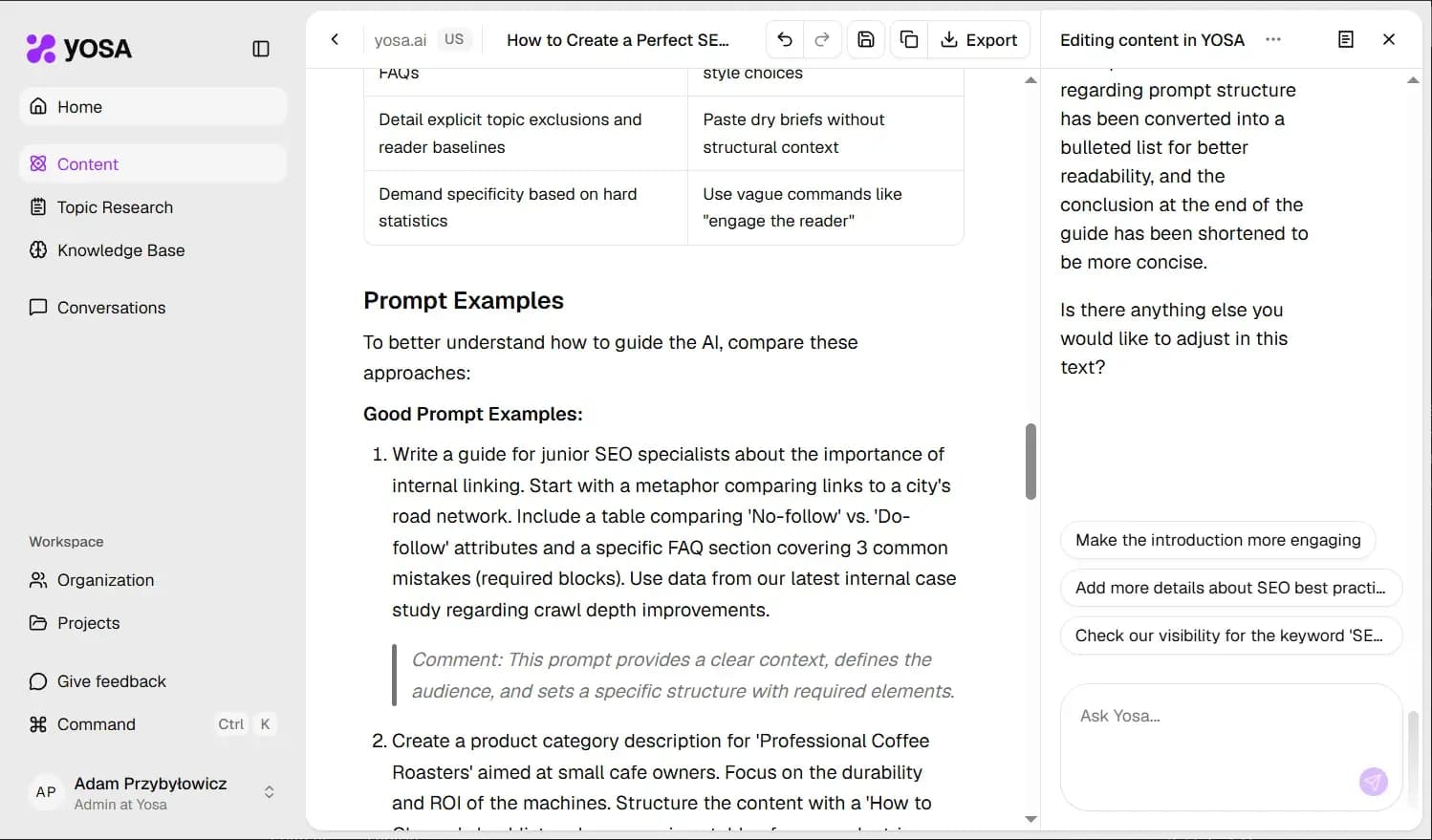
Here you can ask YOSA to refine specific sections directly.
Try it out!
Run a test generation following this sequence and compare the output quality to a rushed, prompt-only attempt.
If something still seems not right during the workflow, reach out to us via "Give feedback" form in-app or at [email protected]. We're happy to help!